
Accessibility Reports
When uploading files in Brightspace an accessibility report is generated automatically. It evaluates the uploaded content against established accessibility standards such as contrast, font sizes, alternative text, missing headline structures, hyperlink context issues, and more. The report provides a detailed list of issues that may affect how students access and interact with the material. It provides suggestions to improve the accessibility.
Access an Accessibility Report
- Click on the Accessibility Badge to open the Alternative Formats menu
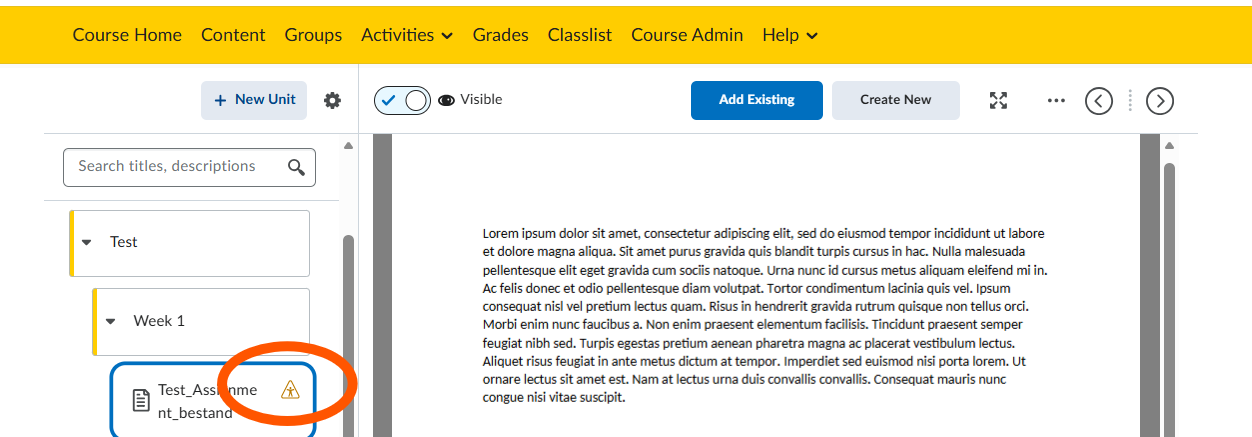
2. In this menu, click on Accessibility Report
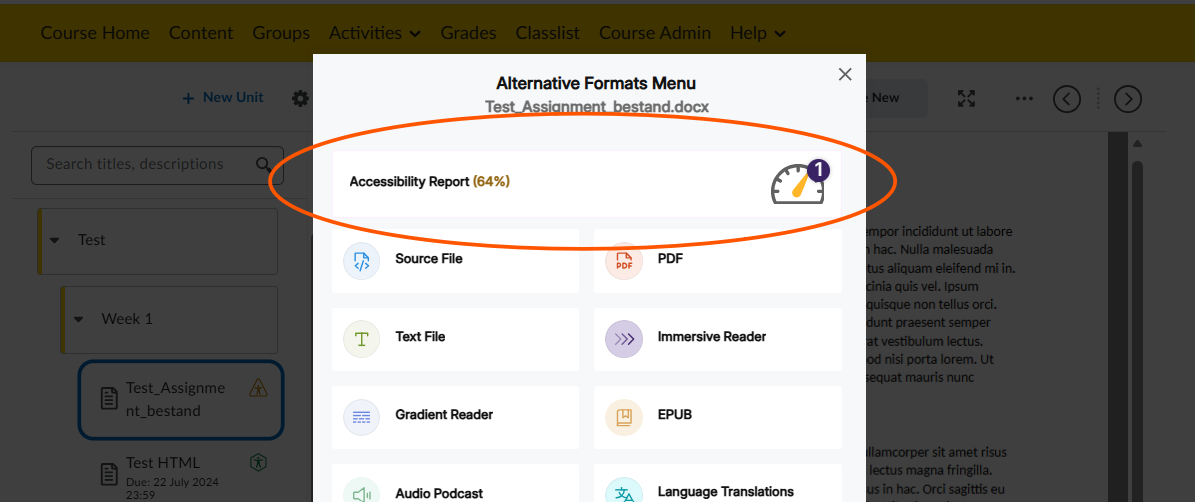
3. The report will open with a list of all the issues classified Minor, Major and Severe
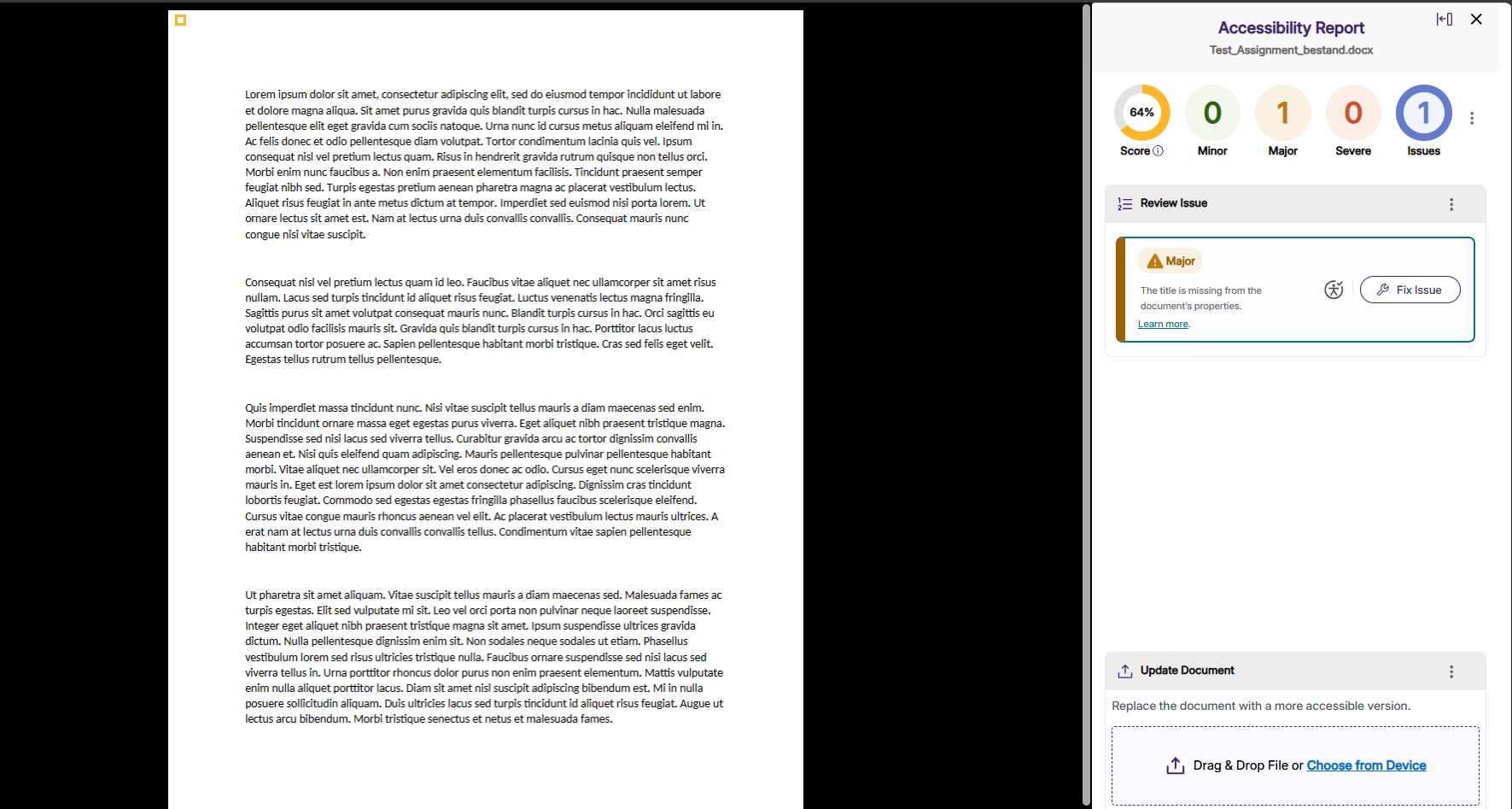
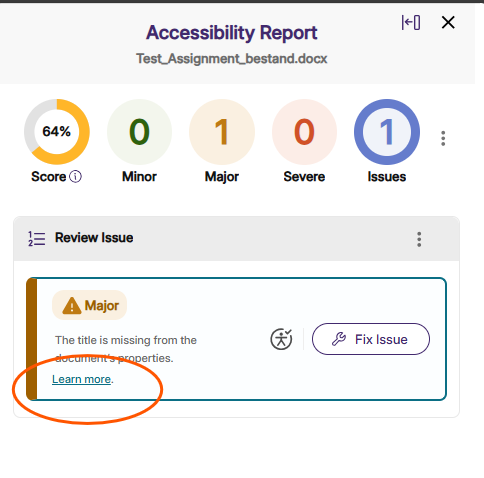
4. Every issue found will include a summary of how to resolve the matter. Via ‘Learn more’ more detailed information and steps are given.
Understanding and improving the Accessibility Score
The classification is of severity of the issues are preset over the entire organization based on international accessibility guideline.
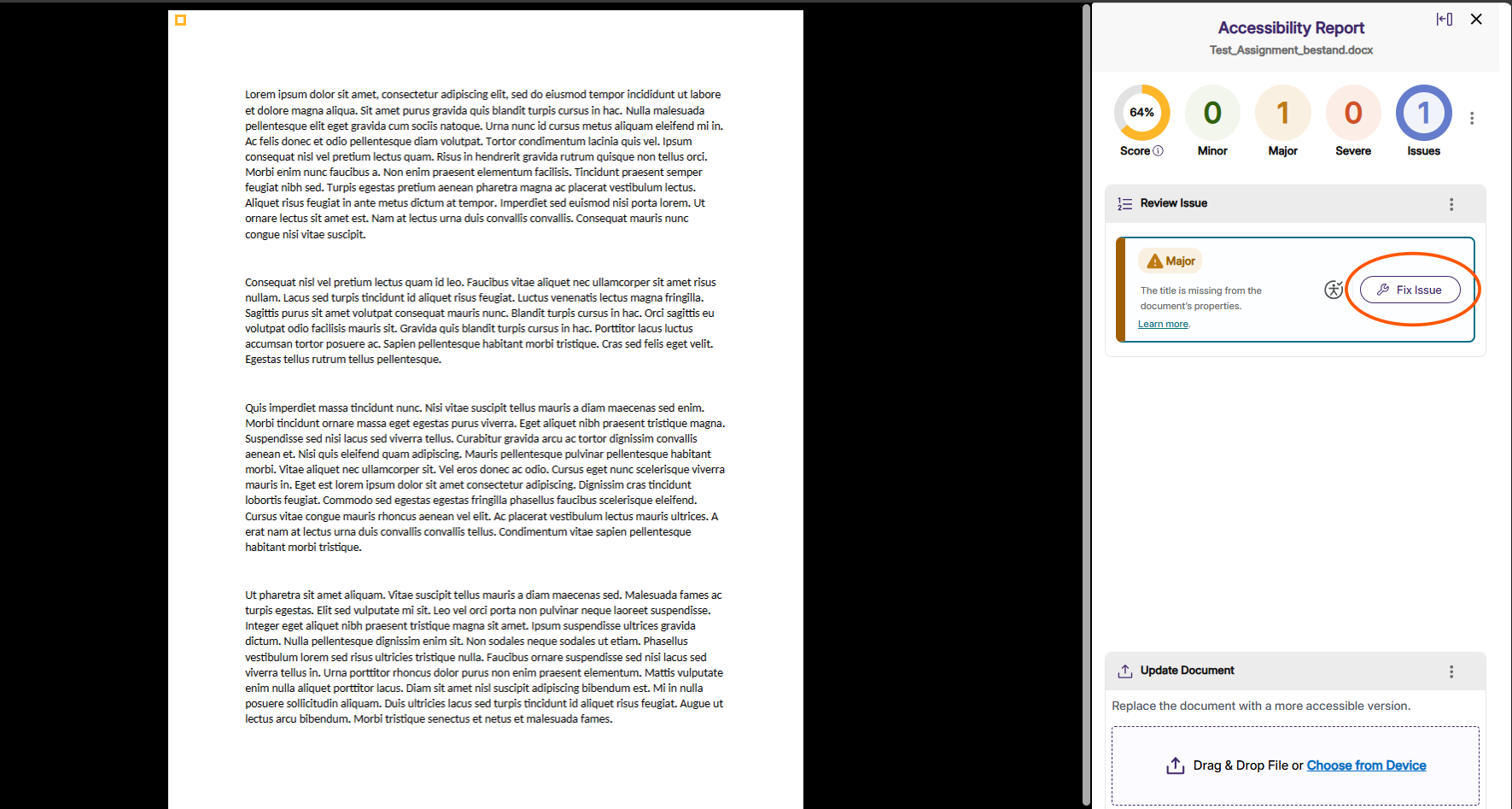
Each issue will have a summary how to fix it. Some will also have a button to automatically let Panorama change the document to fix the issue.
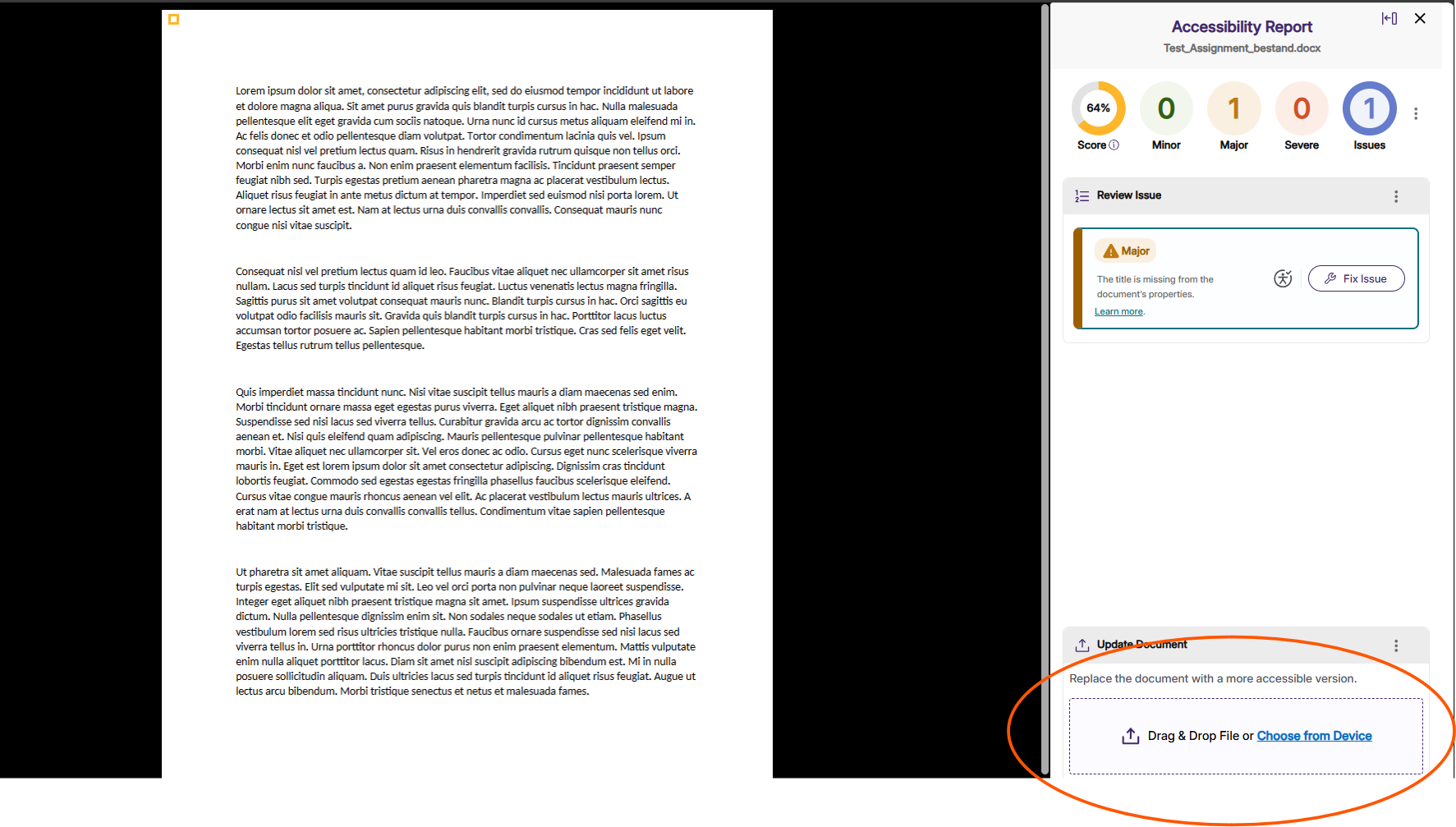
When a issue can not be fixed within Panorama, these need to change it in the source document. Once the improvements are made, they can be dragged and dropped in the accessibility report and will be scanned again by Panorama. After pressing update, all changes will be visible for all users in the course.
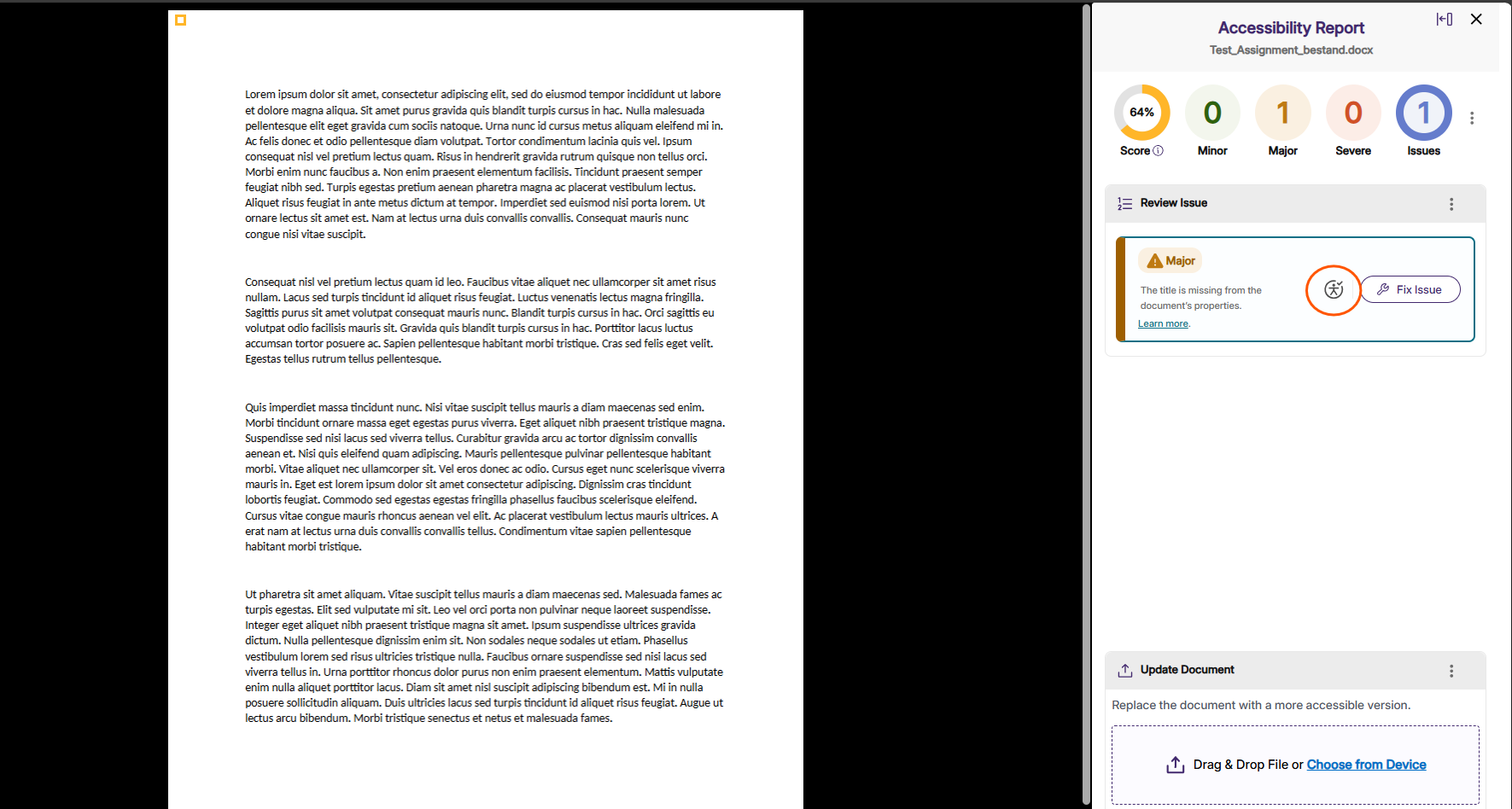
Some, but not all, issues will be able to be dismissed. If you accept the issue and don’t want it to appear in your list anymore you can use this button. This button is only visible for dismissible issues. If the issue can not be manually dismissed, this button will not appear.
A list of all issue per document type can be found here: Panorama’s Accessibility Checklist – YuJa Help Center