Content visibility
In Brightspace, you can adjust the visibility of specific files in the course. This allows you to make part of the content invisible to students if you do not want them to see that section yet.
Option 1: content page
1. Navigate to the content page of your course.
2. Go to the homepage of the course, then click ‘Content’.

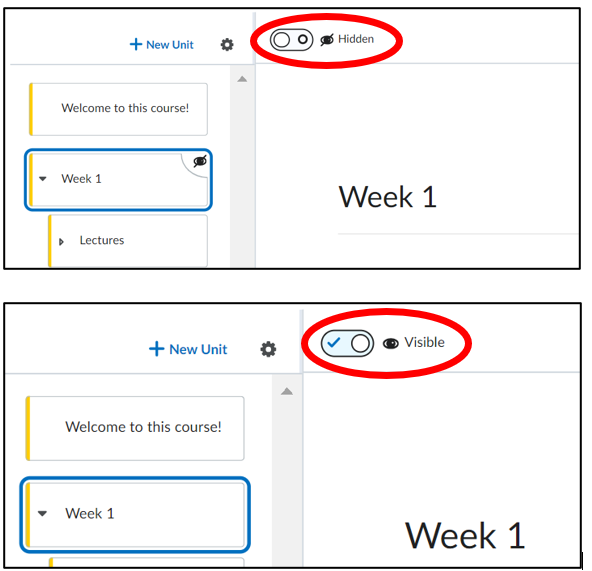
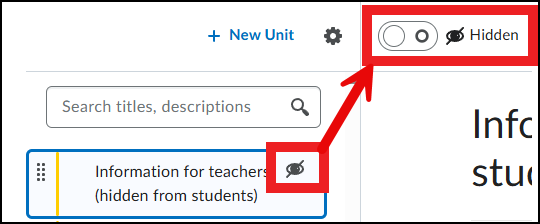
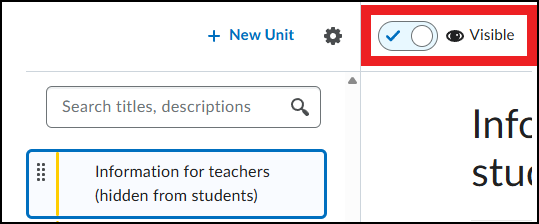
- Then click the slider to change the visibility between ‘Visible’ and ‘Hidden’. When the content is ‘Hidden’, it is not visible to students (but it is visible to teachers). This way, you can make changes without showing them directly to students. The eye icon indicates whether the content is ‘Visible’ or ‘Hidden’.
Option 2: directly in the file
- Click ‘Content’ in the navigation bar of your course.

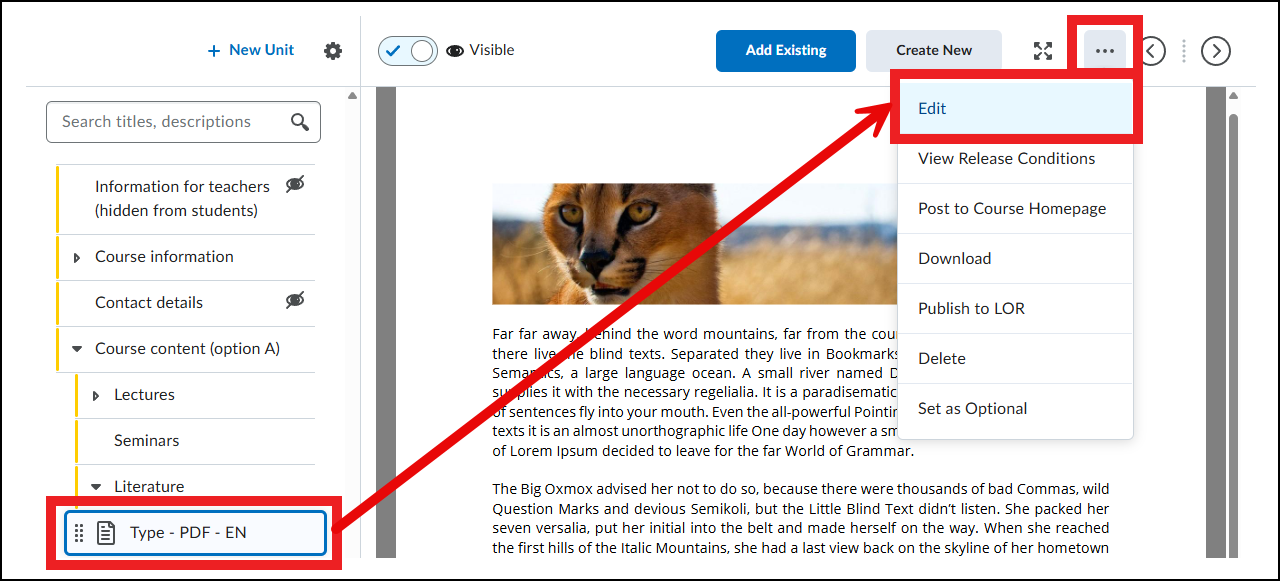
2. Select the ‘Content’ and press ‘Edit’.
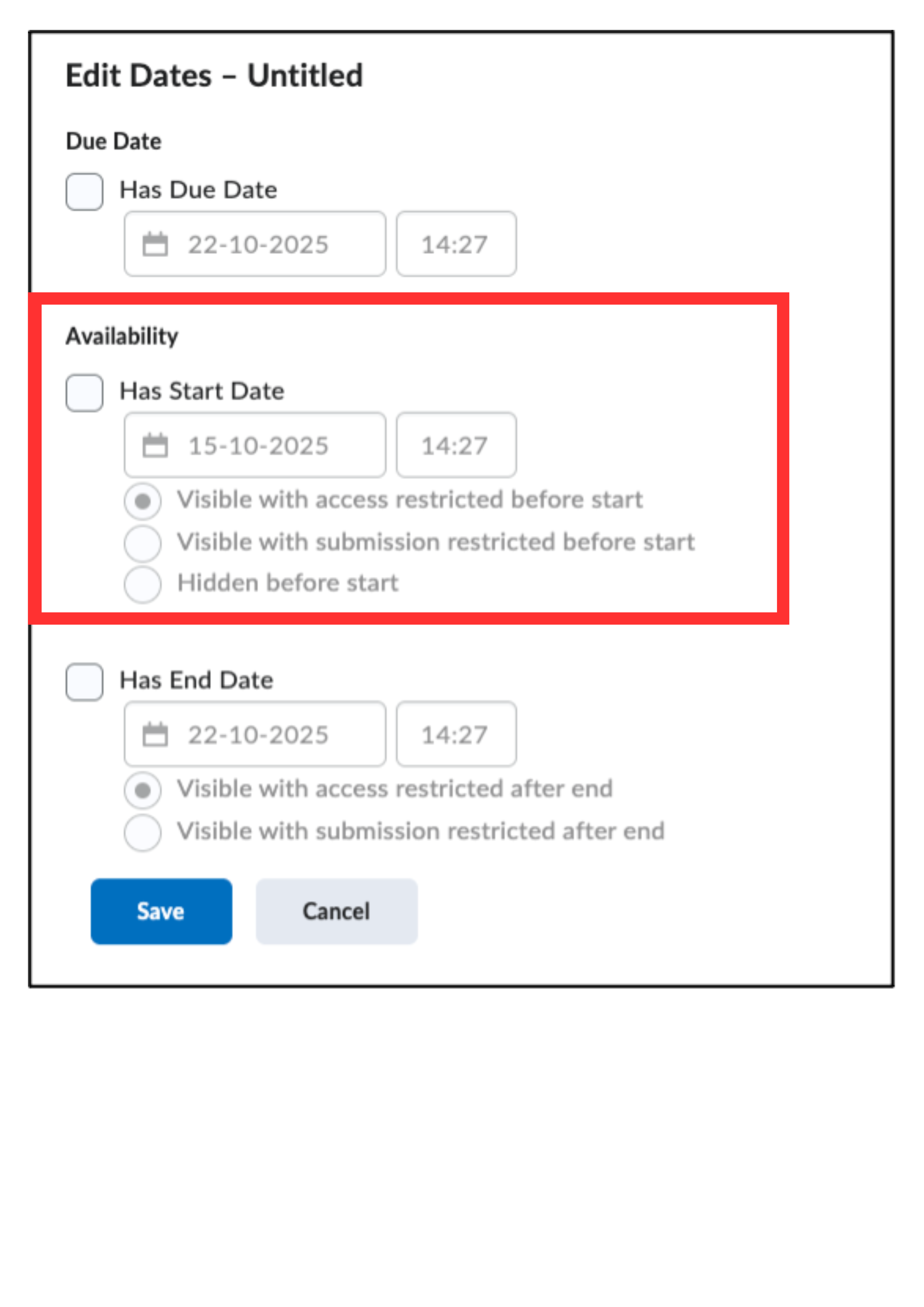
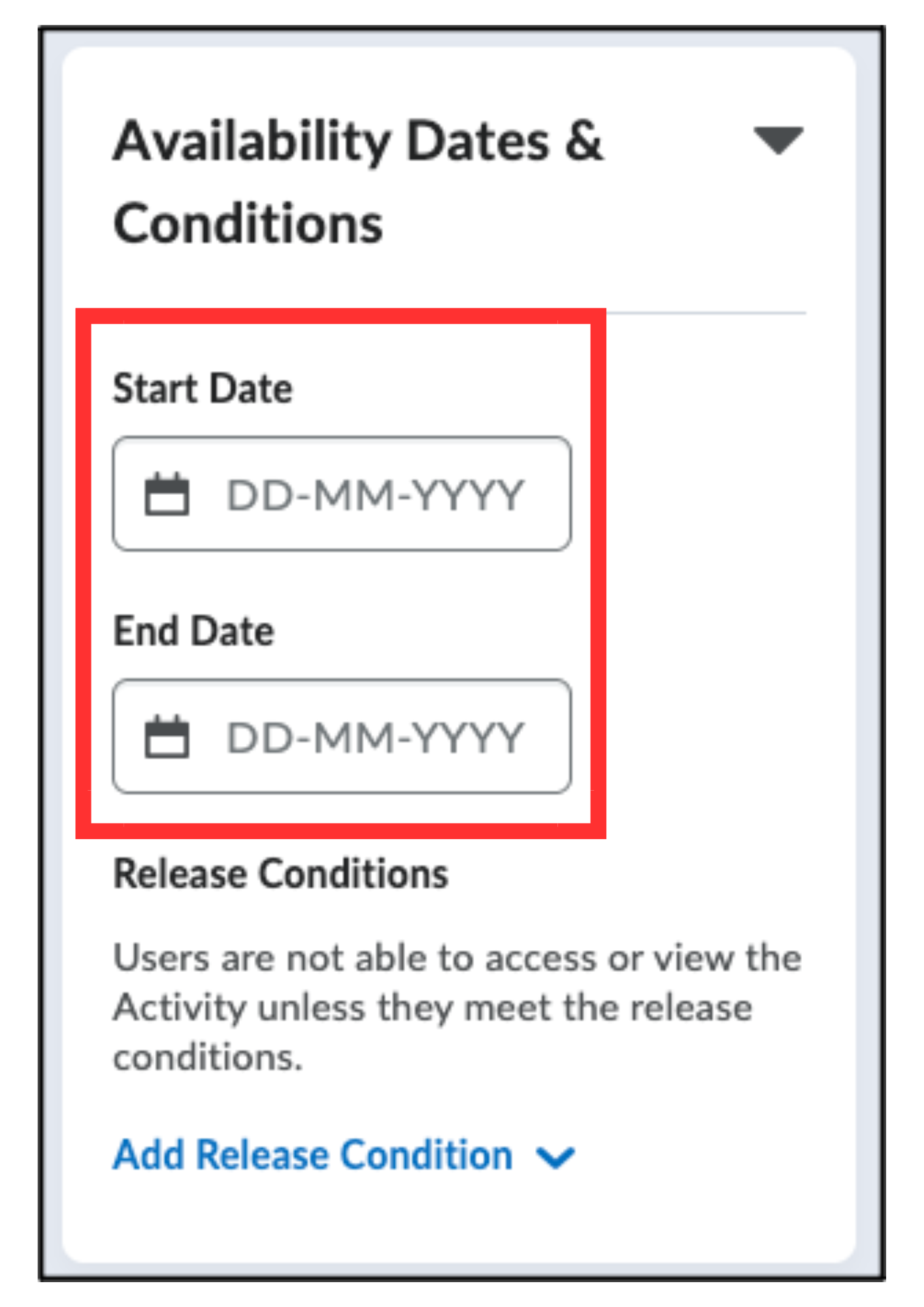
3. Under ‘Availability Dates & Conditions’, set a start date (and/or end date). The file will automatically become visible to students on the date you specify.
Option 3: Via ‘Course Administration’
This tool is especially useful if you want to quickly check or adjust the visibility settings for your entire course.
- Click ‘Course Administration’ in the navigation bar of your course

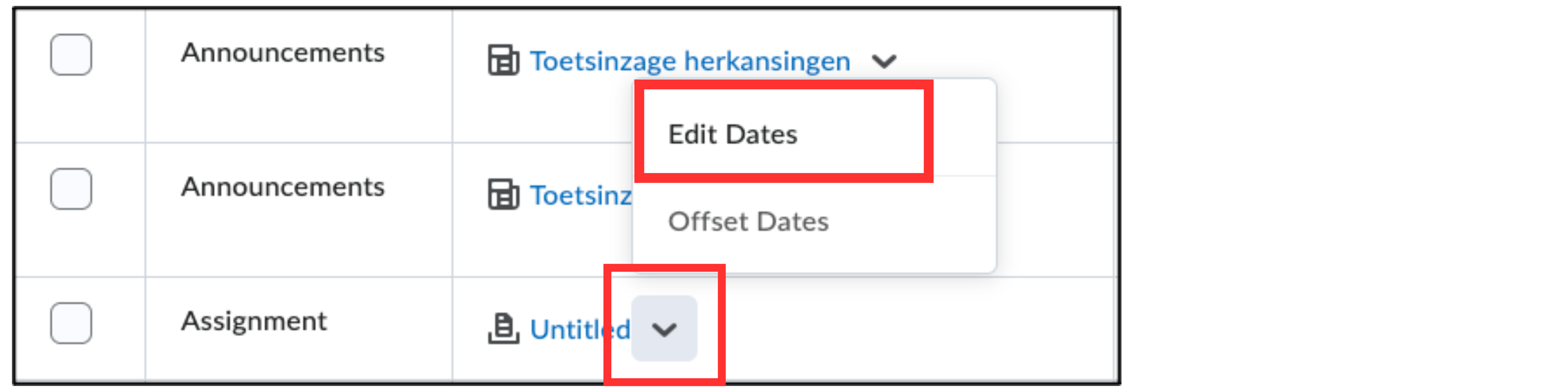
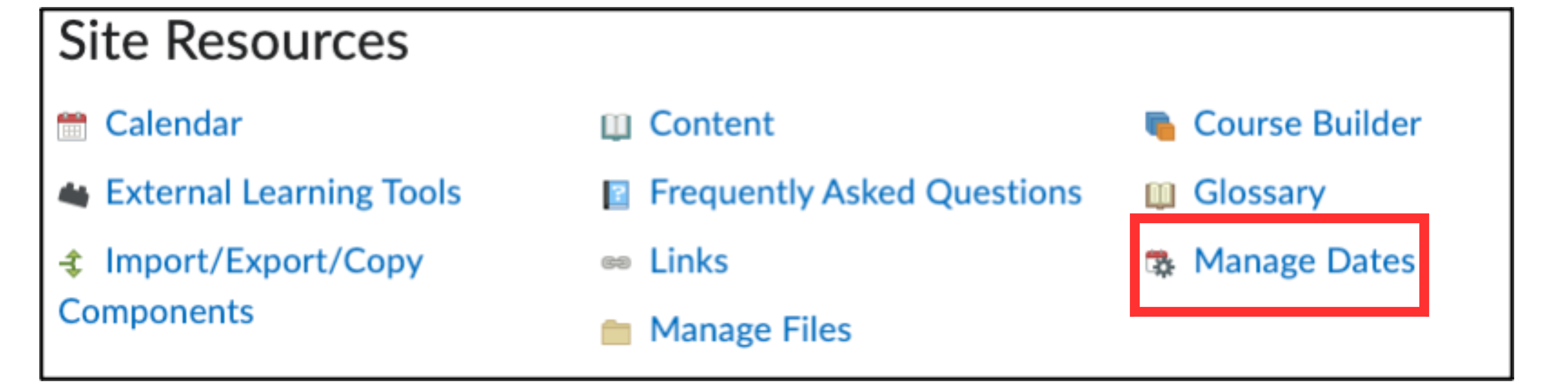
2. Select ‘Manage dates’. Here you will find a list of all content in the course (files, assignments, quizzes, etc.).
3. Select the content. Click the arrow and go to ‘Edit Dates’.