
Adding exam committee members to a course
Step-by-step guide for adding a user with the role ‘Board of Examiners’
Step 1 – Navigate to your course
Open Brightspace and go to the course where you want to add a user.
Step 2 – Open the Classlist
Click Classlist in the course navigation menu (optionally displayed as Deelnemers in Dutch).

Step 3 – Add user
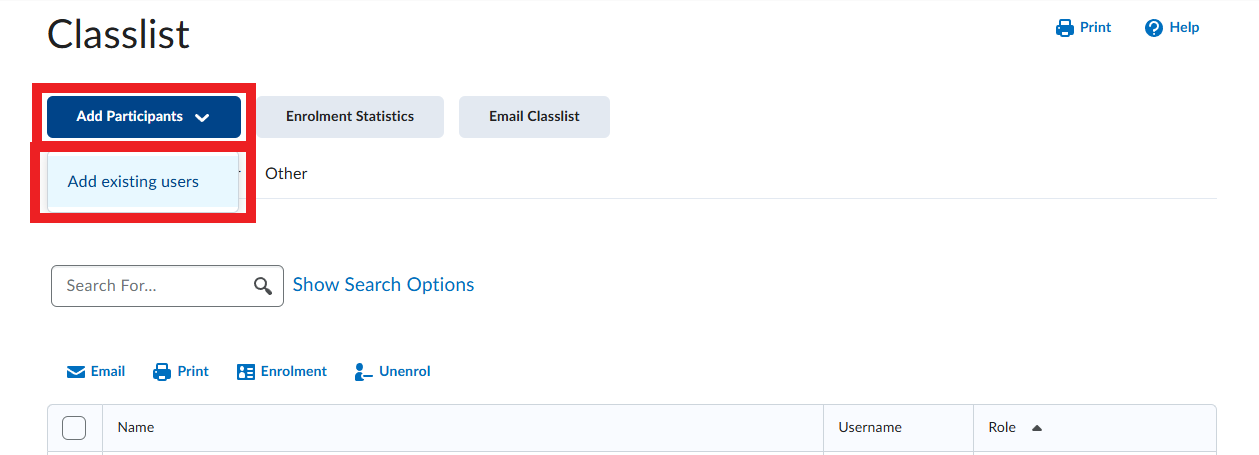
Click Add Participants in the top left (NL: Deelnemers toevoegen).
Then choose Add existing users (NL: Bestaande gebruikers toevoegen).
Step 4 – Search for the user
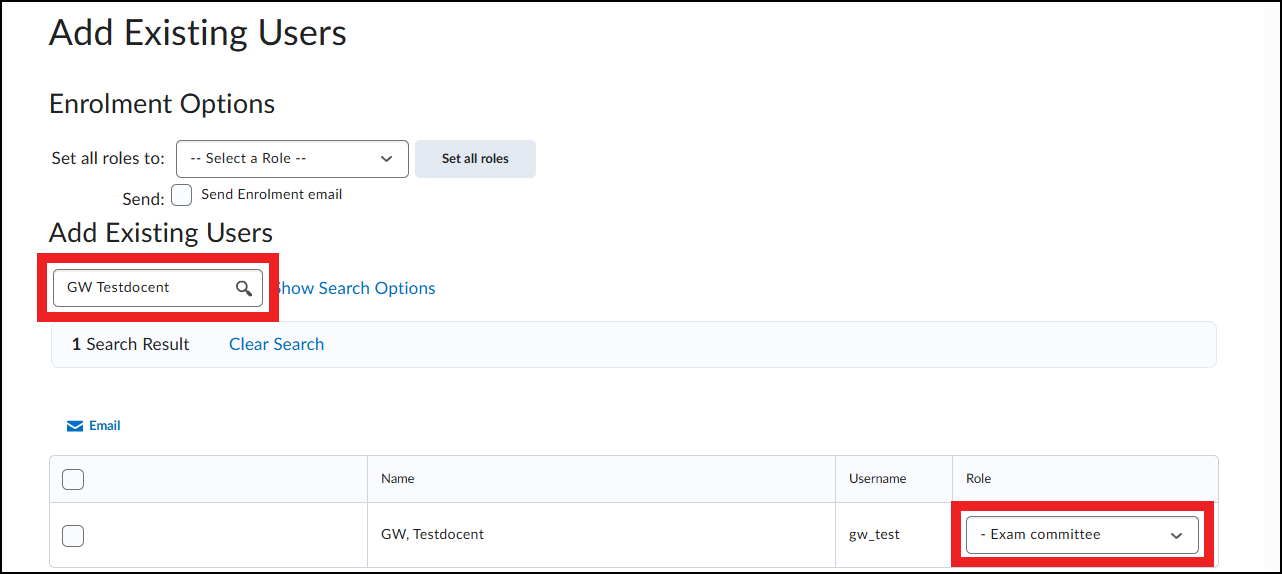
Enter the name or email address of the person in the search field and click Search.
Check the correct person in the search results.
Step 5 – Set the role
Find the Role column next to the selected user and select the role: -Board of Examiners.
Step 6 – Confirm
Click Enroll (NL: Inschrijven) to add the user.
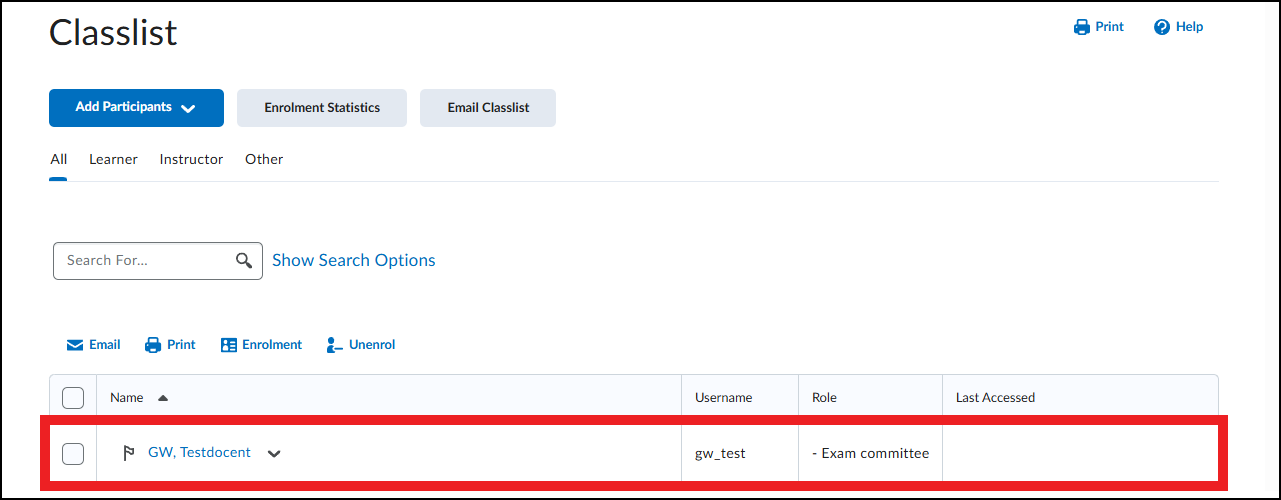
The user now appears in the Classlist with the role Board of Examiners and has access to the course based on the permissions associated with this role.
If you have any questions, contact the system administrator or educational support.