
Navigating within Brightspace
At the top of the screen, you see the general Brightspace menu bar. This menu bar is always visible and provides access to important functions and notifications.

- Utrecht University logo: Click here to go to your personal homepage.
- Course selector: View and pin courses, or search for a course if you have many.
- Messages: View received emails or send an email via the ‘Email’ button.
- Discussion notifications: Receive notifications from discussion forums you are subscribed to. Set whether you want to receive notifications.
- Update notifications: View alerts about newly uploaded files and assignments. Click the bell icon with an orange dot for updates.
- Profile/Settings: View and change your account settings.
- Admin Tools: View your media library. In a course environment, you will also find Import/Export/Copy Components for managing course materials.
Personal homepage
After logging in, you see your personal homepage. You can hide or show widgets on this page by clicking the arrow next to the name and then ‘Expand this widget’ or ‘Collapse this widget’. This helps keep your overview clear.
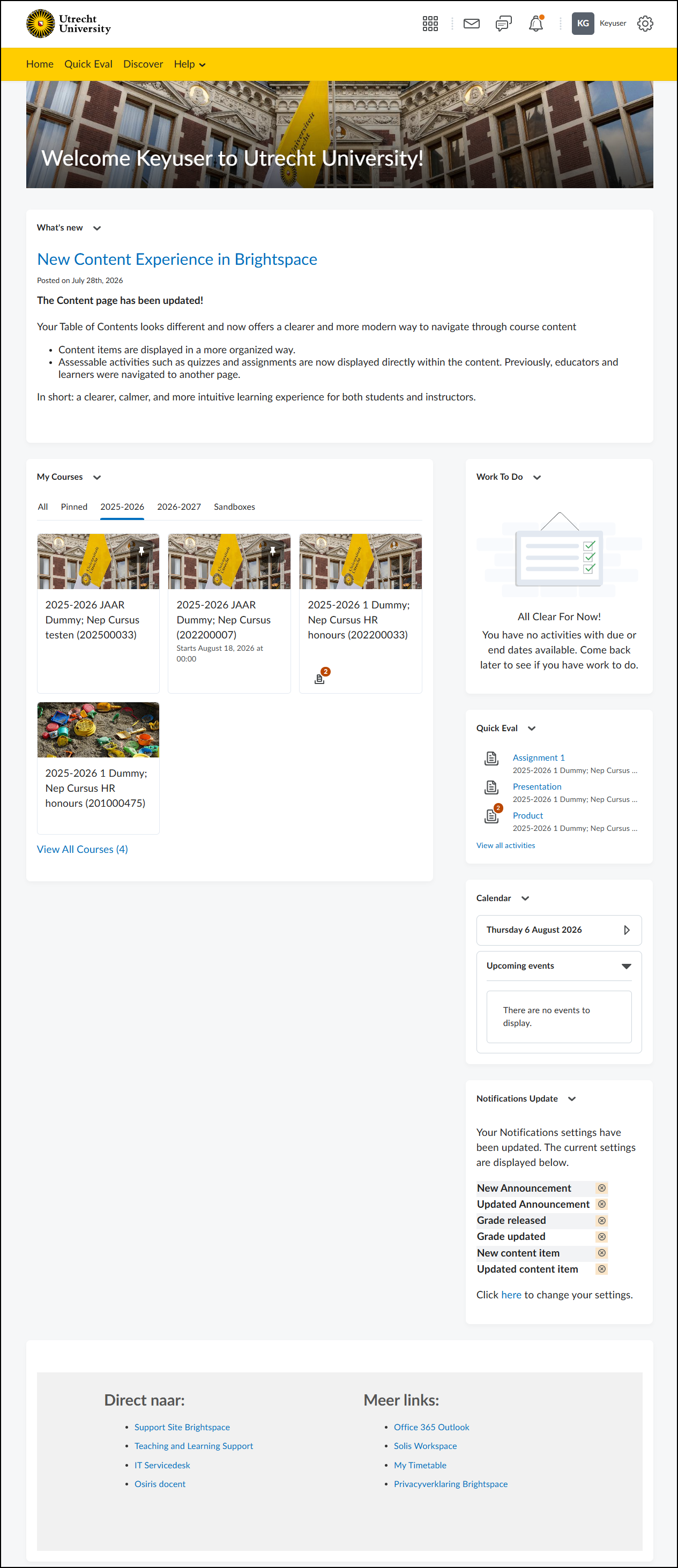
- What’s New: Updates about new features or workflows in Brightspace.
- My courses: Overview of up to 12 courses. Brightspace automatically fills up to 12, even if you have pinned fewer.
- Orange icons with numbers indicate how many unread activities there are (assignments, discussions, quizzes).
- Click the course name to open, or ‘View All Courses’ to see all your courses.
- Work To Do: Shows open and overdue tasks per course with due date.
- Quick Eval: Shows all student submissions waiting for evaluation.
- Calendar: Activities from all your courses. Click ‘Upcoming Events’ for a list, or ‘Calendar’ to open the calendar.
- Notification settings: View and change how you receive notifications (email, pop-up, etc.).
Course homepage
You can navigate to a course via the personal homepage or the course selector.
- Click a course from your personal homepage.
- Or select a course via the course selector.
Navigation bar in the course
The navigation bar is identical for all courses and contains the main sections:

- Course Home: Go to the course homepage.
- Content: View course materials.
- Groups: Find the different groups in the course.
- Activities: Navigate to Assignments, Quizzes, Discussions, and Attendance.
- Grades: View grades for all assignments.
- Classlist: List of all users in the course.
- Course Admin: Manage various aspects of the course, such as Course Admin, Course Information, and Accessibility.
- Help: Access Brightspace manuals and contact information.
Course example
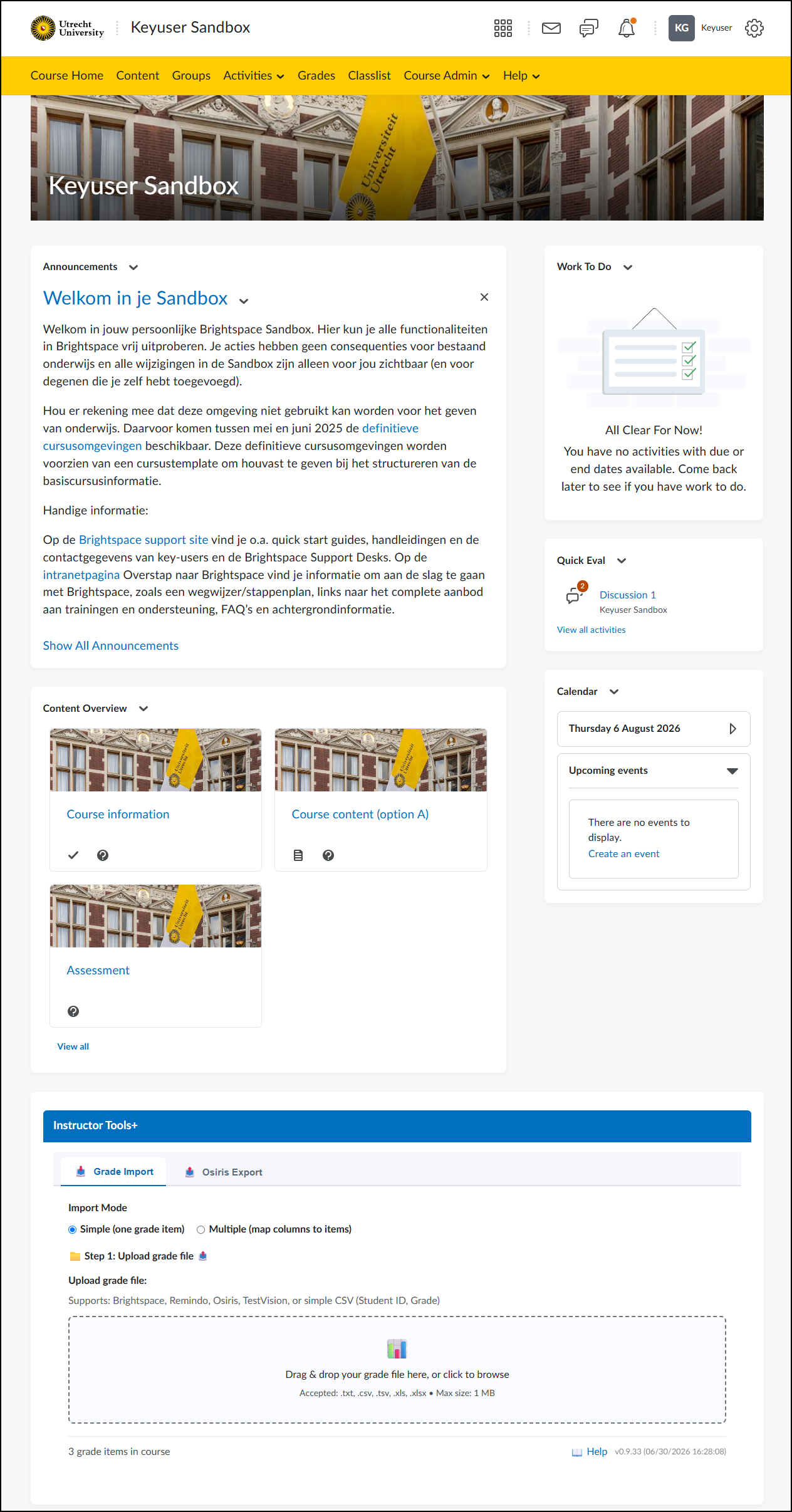
- Course name: Next to the Utrecht University logo is the name of the course, for example Keyuser Sandbox.
- Course banner: Below the navigation bar, the course name is usually shown again. You can adjust this via the three dots at the bottom right of the banner.
- Announcements: View announcements for this course. Adjust notification settings via your profile.
- Content overview: Navigate to the course content. The tiles only show the Units (folders at the highest level).
- Instructor Tools+: Widget that allows you to easily import grades (for example from Remindo) or export them (for example to import into OSIRIS).
- Work To Do: View outstanding tasks.
- Quick Eval: View grading work that is still open.
- Calendar: View course activities such as deadlines and meetings.