Feedbackfruits
FeedbackFruits is a plugin that teachers can use to easily let students view each other’s work and provide feedback. In this guide, we show how you can add FeedbackFruits to your Brightspace environment.
- Navigate to the Course where you want to place the FeedbackFruits assignment. From your homepage, scroll down and find the course in the selection menu, or click the grid above the Navbar and find the course in the list.

- On the course homepage, click ‘Content’ in the Navbar.

- Go to the folder (Unit, Lesson or Folder) where you want to add the link to FeedbackFruits.
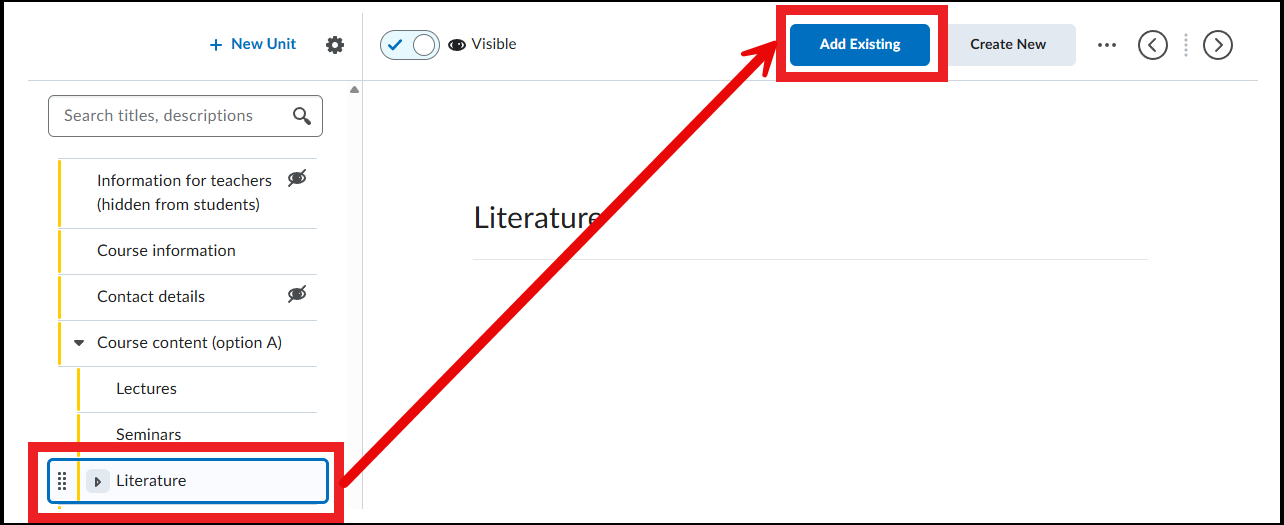
- Click ‘Add Existing’
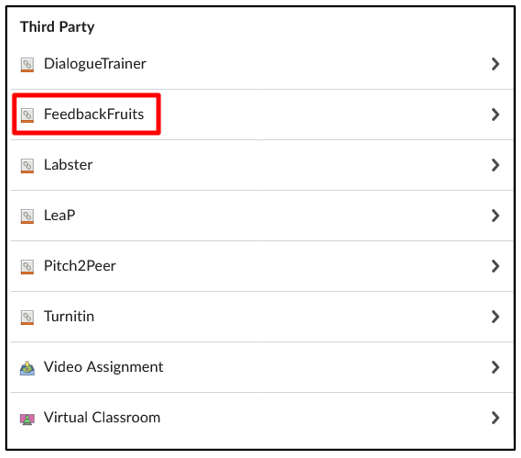
- Then choose ‘More’ and under the heading Third Party, select ‘FeedbackFruits’:
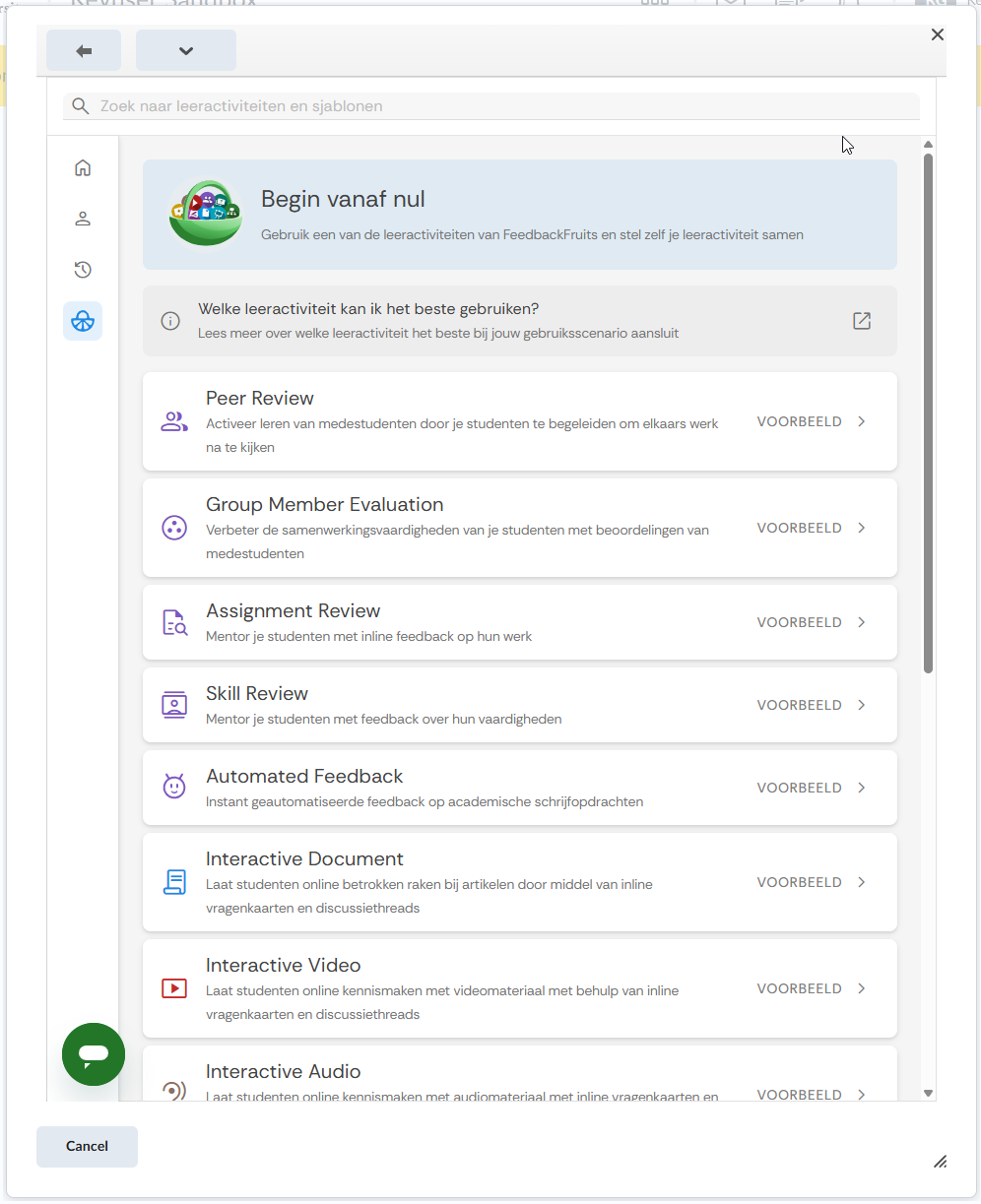
- You can now log in to FeedbackFruits and choose one of the activities offered by FeedbackFruits.
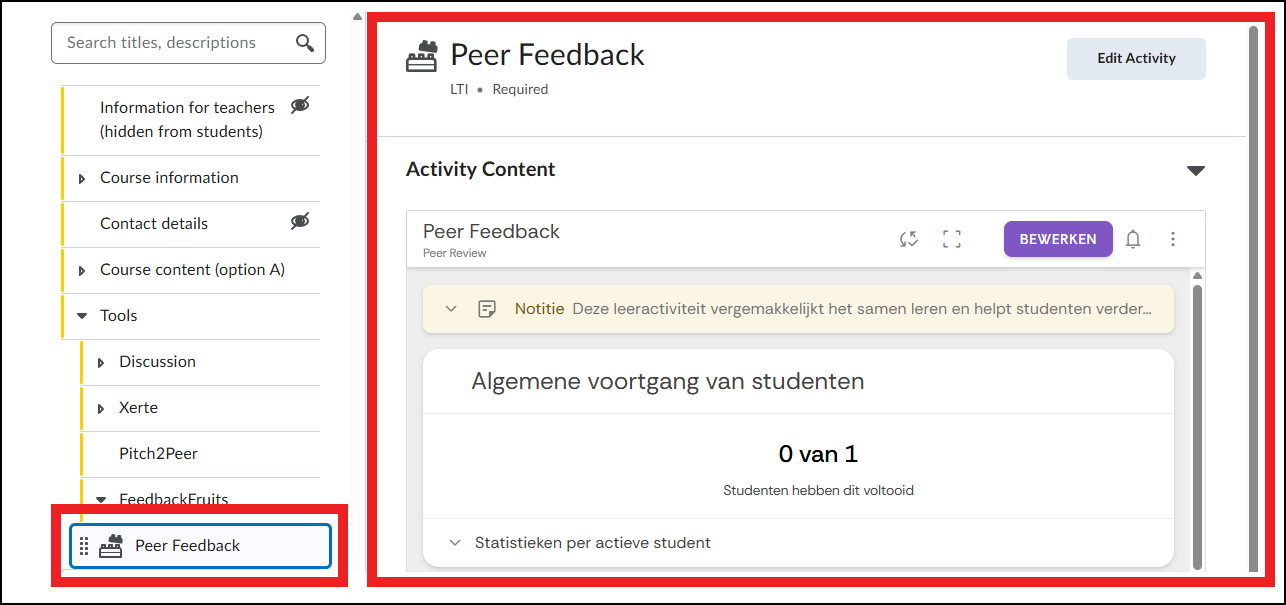
- The activity will then be added in the folder you previously selected: