Navigate through a course
This article explains what you can find on the ‘Course Home’ and how you can set up the ‘Course Home’ of your course.
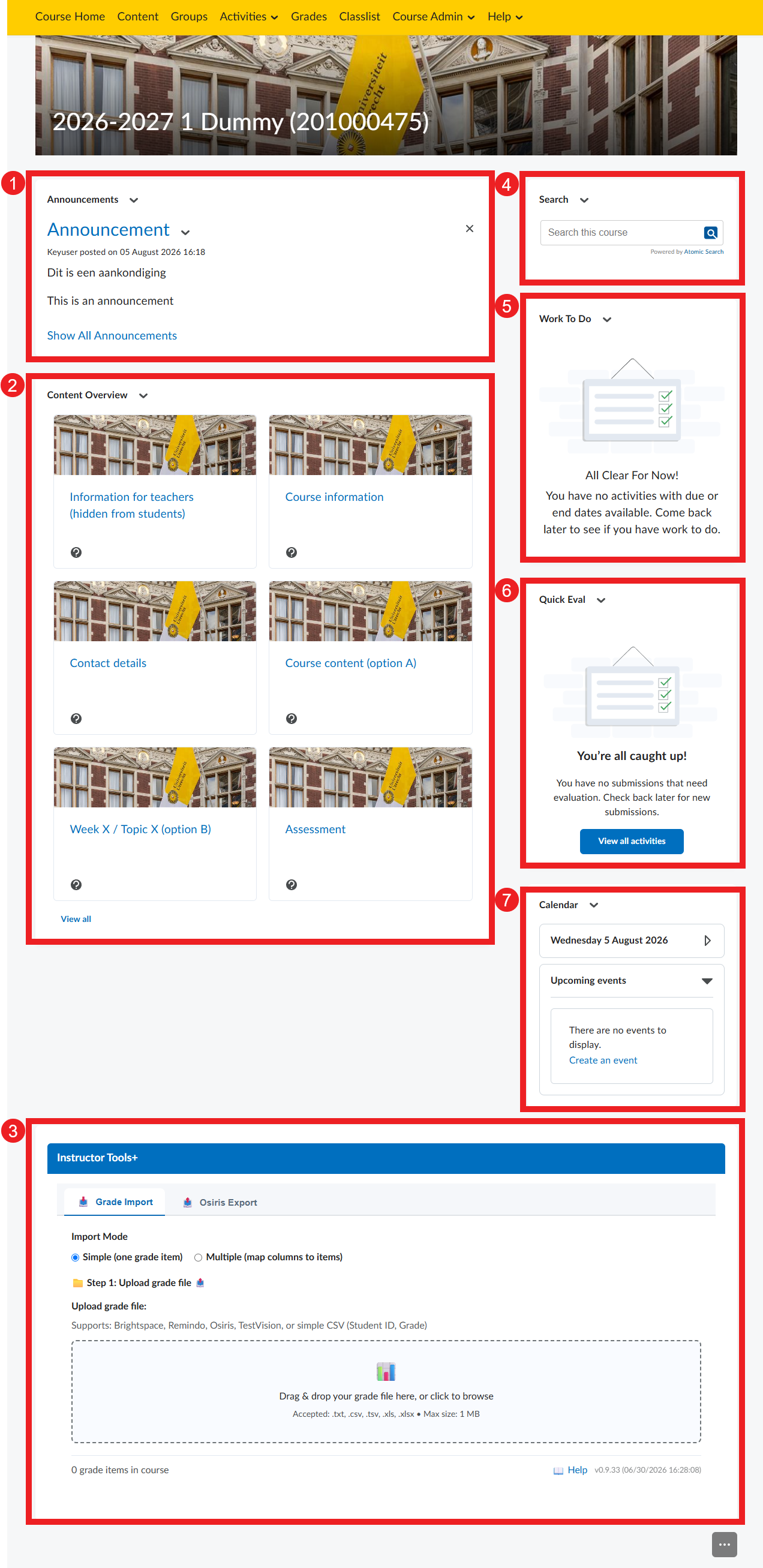
When you click on a course from the Brightspace homepage, you are directed to the ‘Course Home’ of your selected course. The Course Home has several preselected widgets. Below, ‘Announcements’, ‘Content Overview’, ‘Work To Do’, ‘Quick Eval’ and ‘Calendar’ are discussed.
The ‘Welcome Banner’ is the image at the top of your Course Home. The banner represents your course, so choose an image that fits the course well. To read how to adjust the ‘Welcome Banner’, see Adjust course image
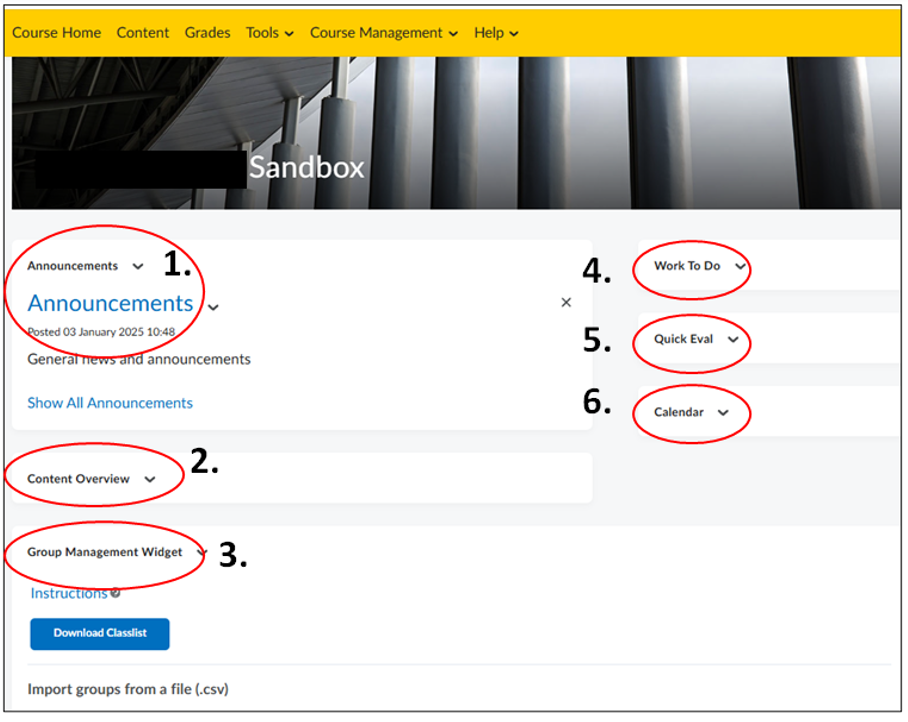
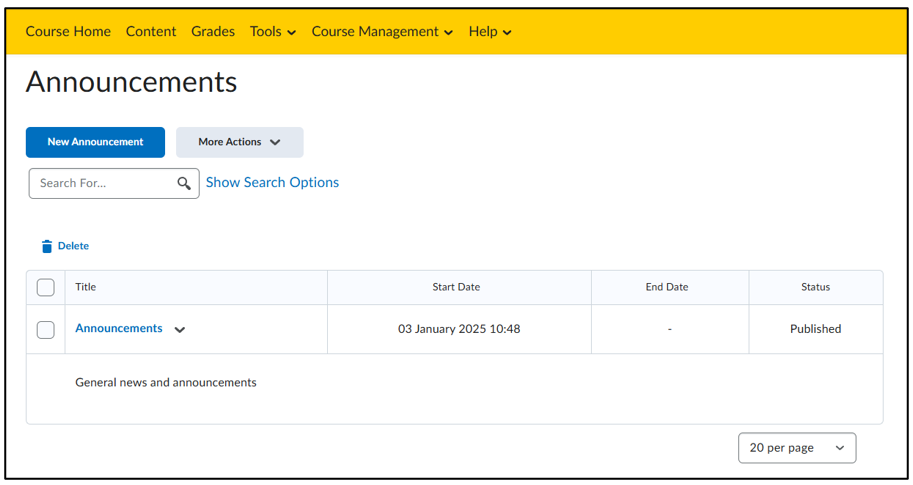
- Under ‘Announcements’ you can post announcements for students, such as a welcome message at the start of a semester, changes in the schedule (such as time and location), important course content (assignments, quizzes, etc.), or upcoming deadlines. For more information about creating announcements, see the guide: Create announcement
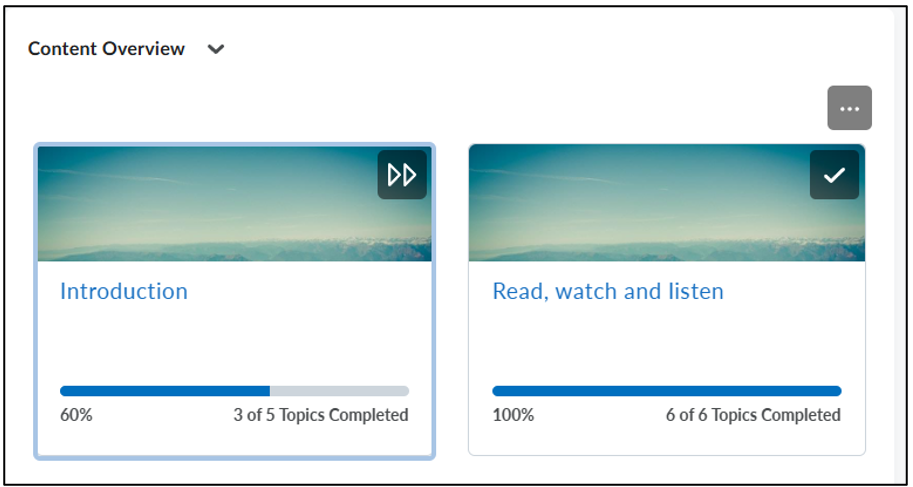
- The ‘Content Overview’ shows the modules under content. This widget can be used to quickly navigate to specific content. When used, a progress bar appears indicating how much of the module you have viewed.
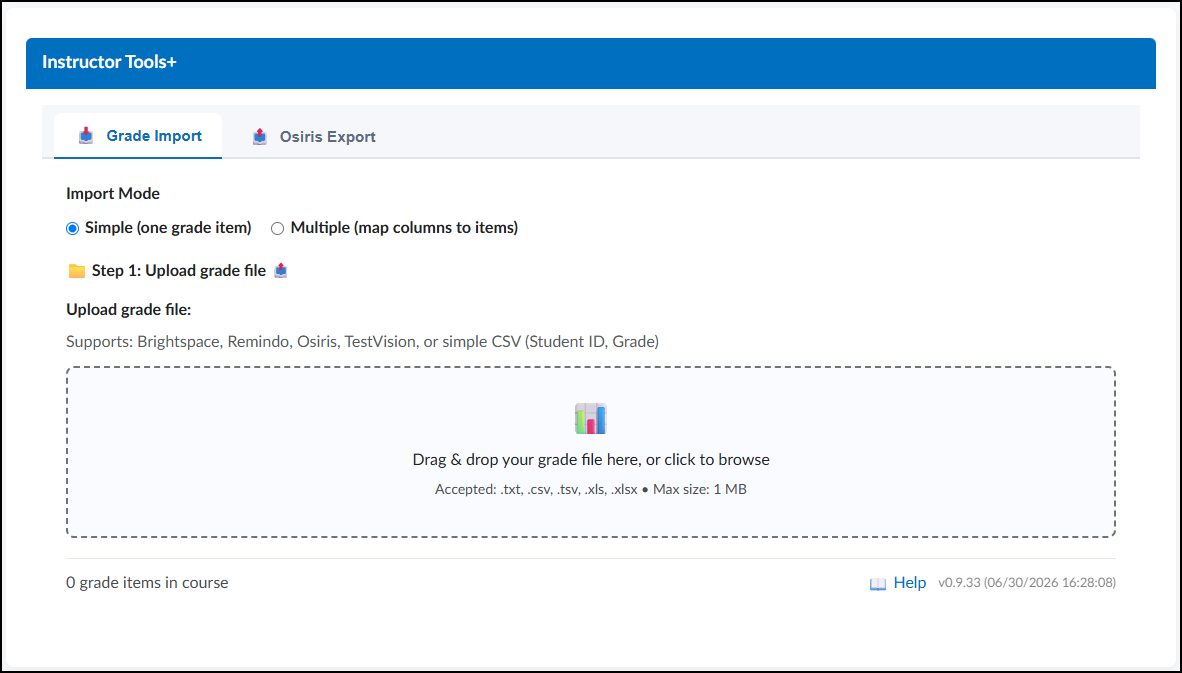
- Under ‘Instructor Tools+‘ you will find options to easily import grades (for example from Remindo) and export them (for example for OSIRIS)
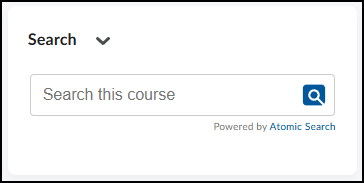
- Under ‘Search‘ you can quickly search the course
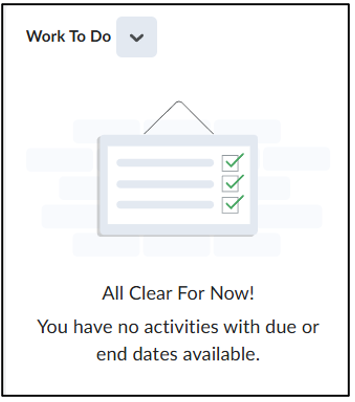
- ‘Work To Do’ provides a current overview of important activities and deadlines.
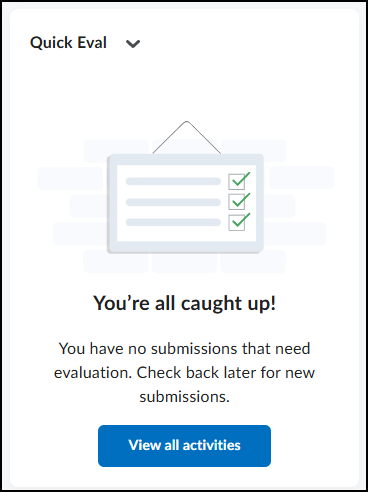
- Under ‘Quick eval’ you will find submissions that can be graded.
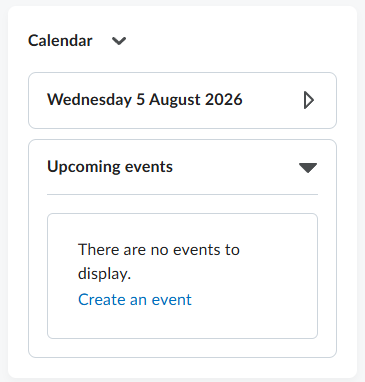
- The ‘Calendar’ widget shows all upcoming events such as deadlines and manually added meetings. You can view them as a list under ‘Upcoming Events’. For more information, see the guide: How do I adjust the calendar settings?