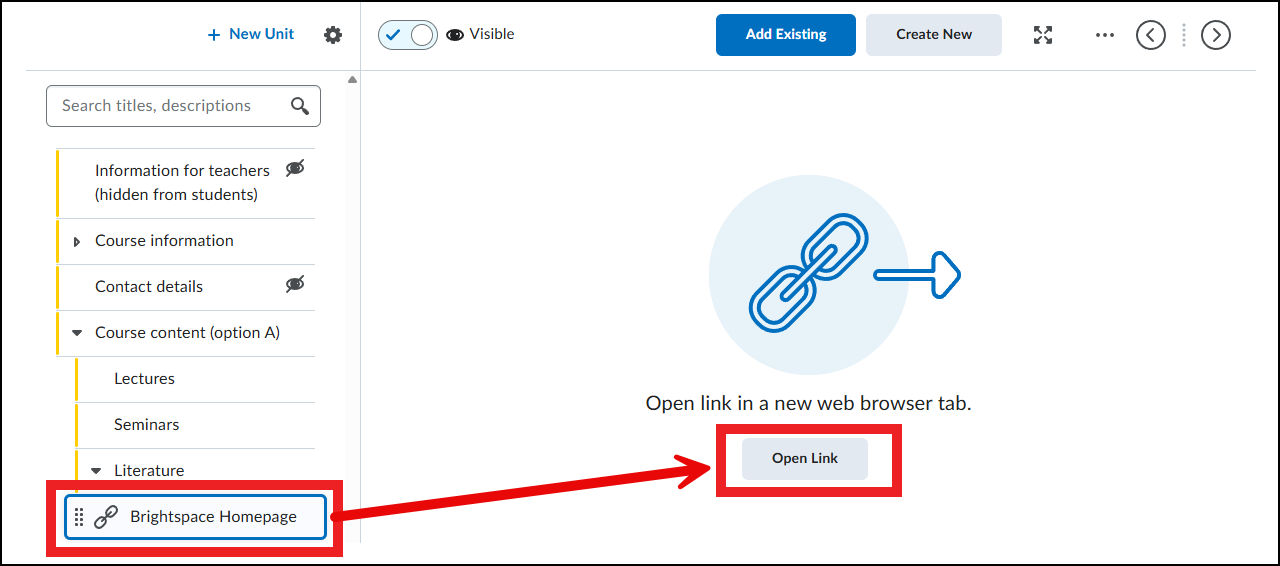
Add a weblink
In Brightspace, it is possible to add a weblink/hyperlink to Content.
- Navigate within the course to ‘Content’ in the yellow navigation bar.

- Then select the content folder where you want to add the weblink, for example under Literature:
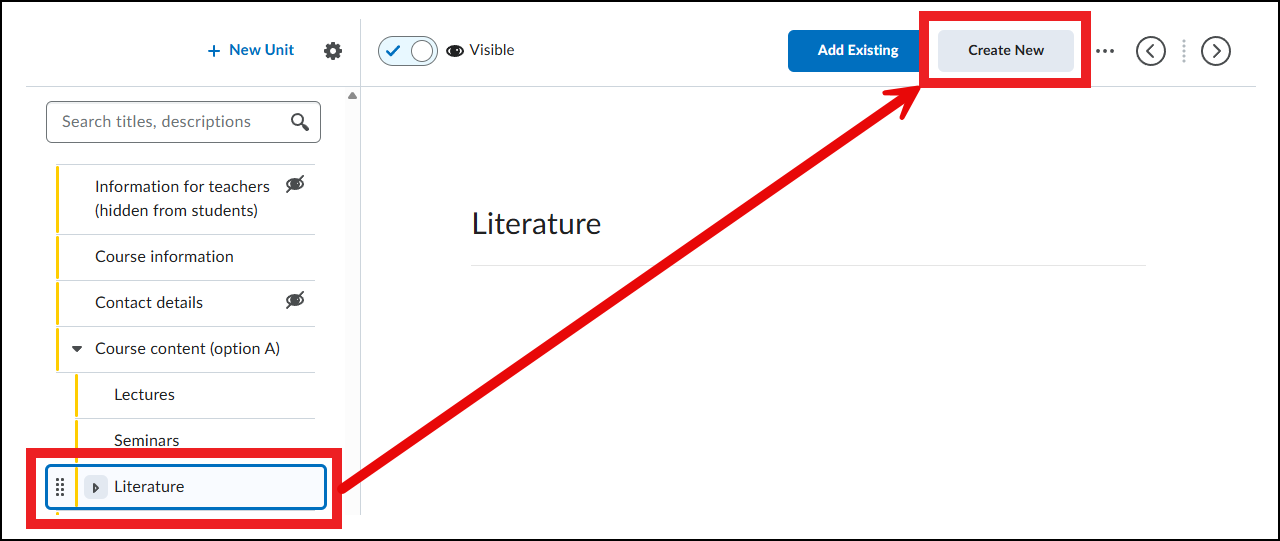
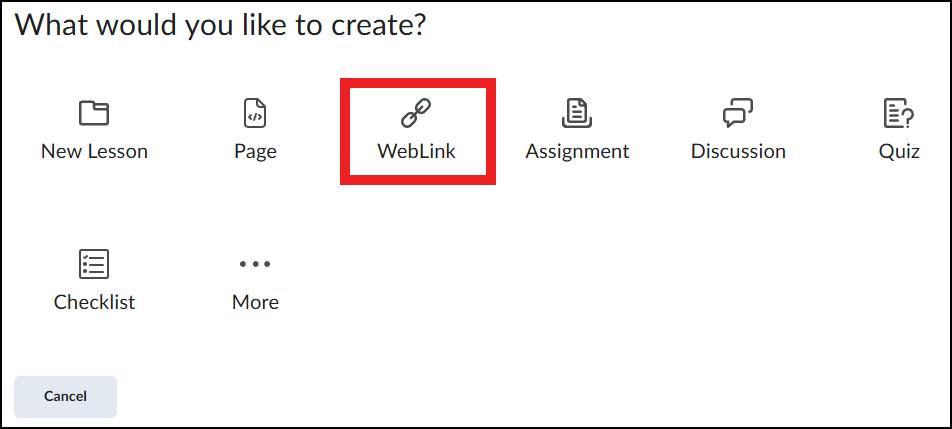
- In the next screen, click ‘WebLink’.
- Provide the WebLink:
- A title that will also be shown in Content.
- (optional) a Due Date to track whether students have viewed the link on time.
- (optional) A description for the link
- The link you want to share under External Link
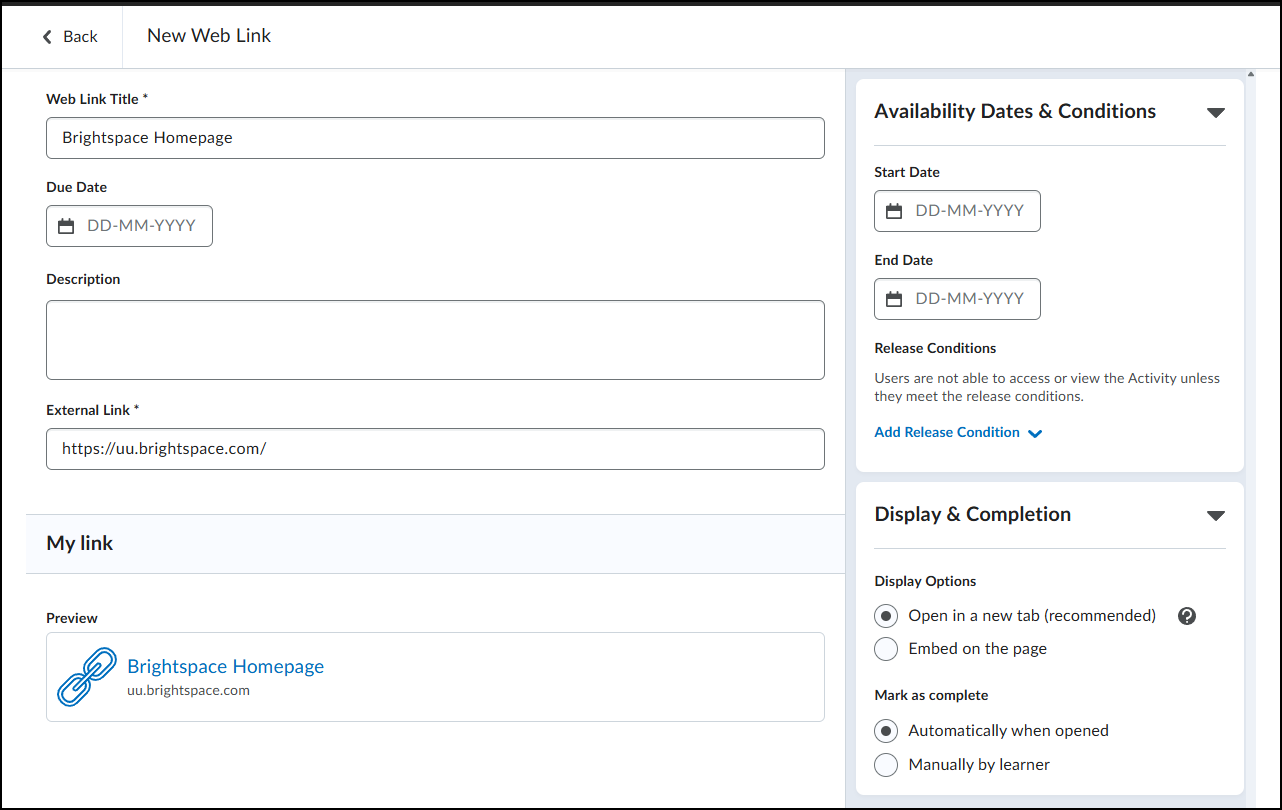
- On the right side, you can adjust the settings. For WebLink, under Display Option you have the following options to display the link:
- Open in a new tab (recommended): The link opens in a new tab.
- Embed on the page: The link is displayed within Brightspace. This is not possible for all links, so if this option gives an error message, always choose “Open in a new tab”.
- Finally, click ‘Save and Close’ at the bottom.