How do I set up a course using an HTML Course Template?
To ensure consistency across all courses, special UU templates have been implemented for Brightspace. It is not mandatory to use these templates, but it is strongly recommended. Research shows that students strongly prefer uniformity in all courses.
What are templates?
Templates are ways to structure HTML pages. There are no templates available for units, lessons, or folders. You can select templates by creating or editing an HTML page.
First, go to ‘Content’.
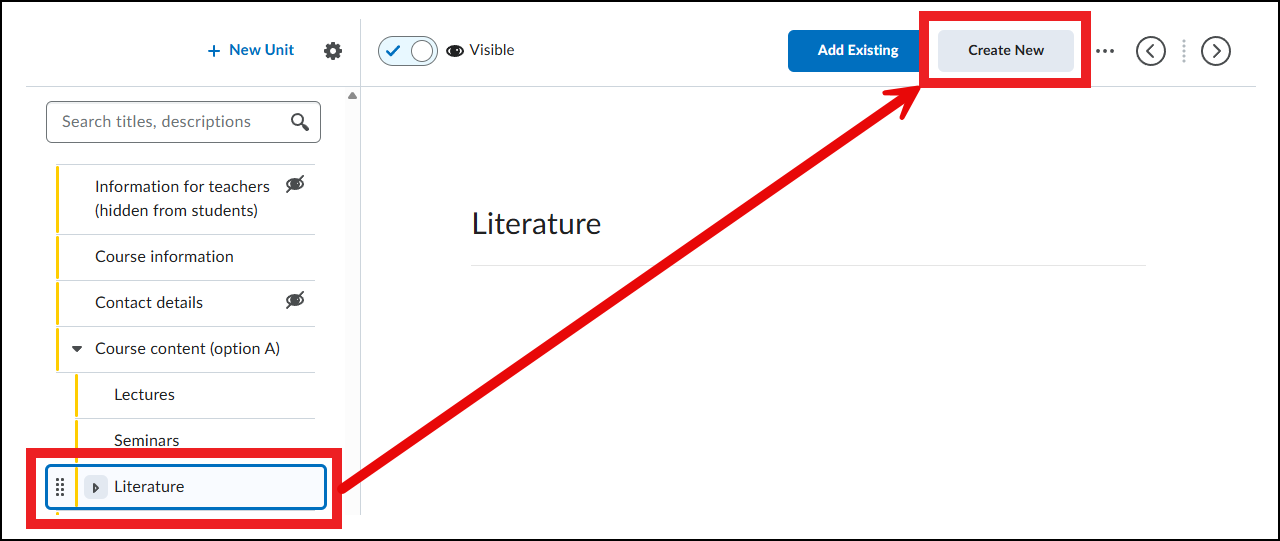
Create a new HTML page by clicking ‘Create New’ where you want the new page to appear.
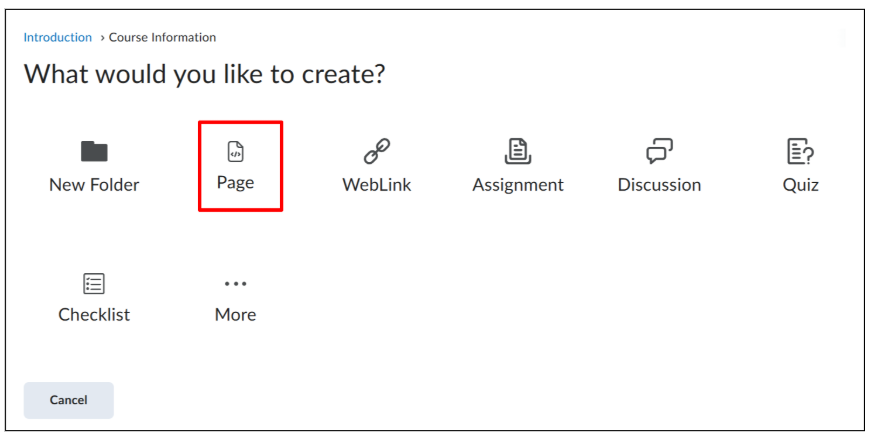
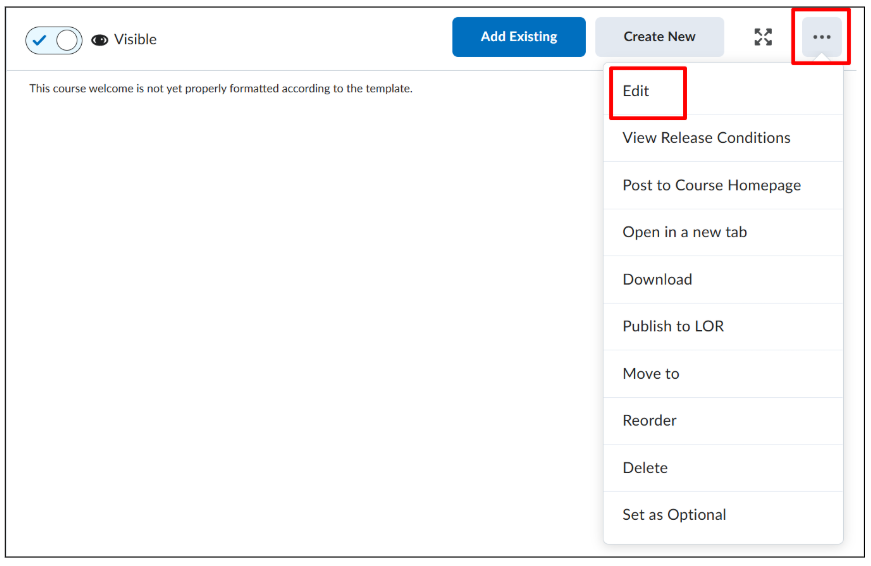
Then click ‘Page’.Or edit an existing page by going to that page, clicking the three dots in the top right corner, and selecting ‘Edit’.
This takes you to the HTML Editor page. More information about the Editor can be found here: Using the HTML Editor
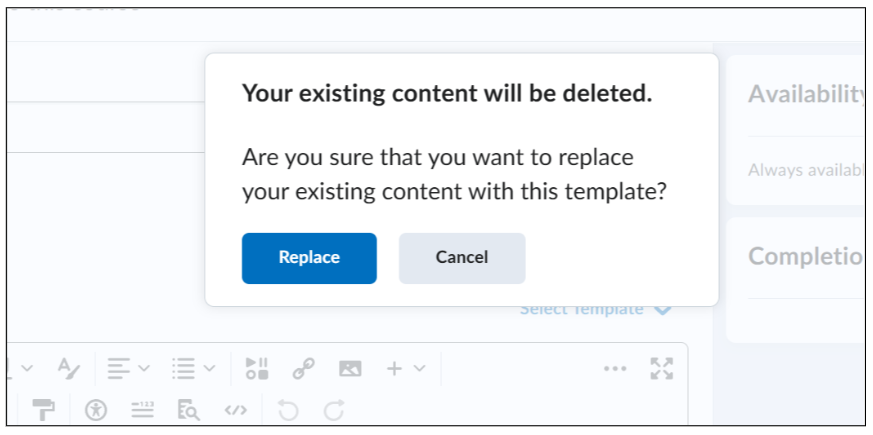
Note: Templates overwrite the existing page. If you edit an existing HTML file, make sure you have copied all information before selecting a template.
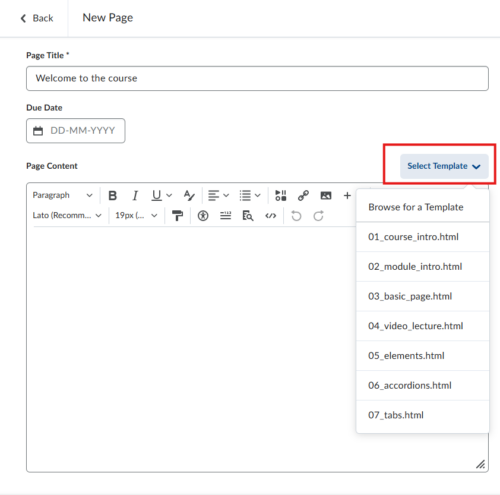
Click ‘Select Template’.
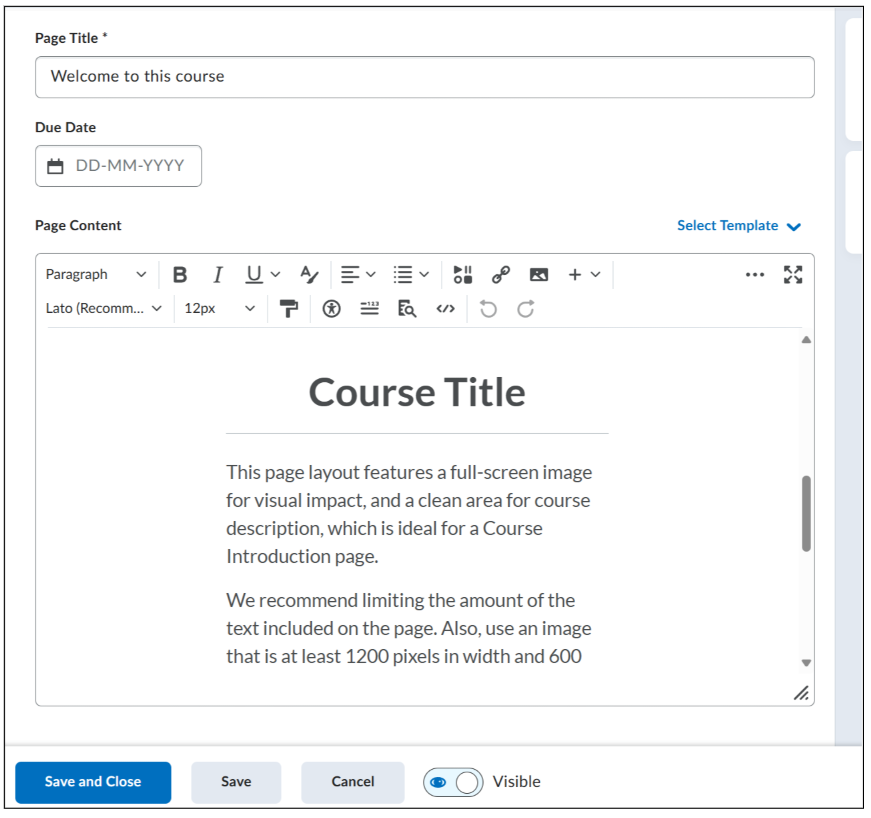
Select the template you want to use. There are 7 templates available, each for a specific purpose. Each template contains instructions for use.
– 01_Course Intro: use this template for the course introduction.
– 02_Module Intro: use this template for the introduction of a module/unit. You can also specify the learning objectives of the module.
– 03_Basic page: Use this template for lesson information that mainly consists of text, such as assignment instructions or reading material for a lesson.
– 04_Video lecture: Use this template for video material. The instructions in this template are specific to YouTube videos, but you can also place recorded lessons here.
– 05_Elements: this template is not used for a specific purpose, but contains template-conform elements that can be copied and pasted to other pages if needed. These are, for example, lists, tables, and quotes.
– 06_Accordions: this template provides various accordions that can be copied and pasted to other pages. Accordions are a way to structure information. They can be individually clicked open to show information.
– 07_Tabs: this template provides various tabs that can be copied and pasted to other pages. The tabs work in the same way as the accordions, with the difference that accordions are vertical and tabs are horizontal.
Choose the template you need. If there was already information in the editor, a pop-up will appear asking if you want to overwrite the existing information. Click ‘Replace’ if you have already copied the information or want to remove it, or ‘Cancel’ if not.
The template now appears in the HTML editor. Scroll down if needed to adjust the text. Remove the placeholder text and enter your information in the template. Click ‘Save and Close’ when you are ready to publish the page.