
Class Progress
What is Class Progress and why use it?
Class Progress is a tool that provides instructors with a clear overview of students’ progress within their course. It brings together information from various course activities such as assignments, quizzes, and grades, and presents these insights in one place.
For example, through Assignments you can see who has submitted their work, but Class Progress shows this information for each student in a single overview. This allows you to quickly see which students are actively engaged and who may benefit from additional support.
Class Progress helps instructors guide students more effectively and reflect on their learning process. Assessing based on progress is NOT the goal of this tool.
Students also have access to Class Progress, but only to their own progress and activities.
How can Class Progress be used in practice?
Examples:
- Gain insight into when students complete or submit their work. Instructors can send reminders when a deadline approaches, or adjust deadlines based on when students usually submit their tasks.
- Identify students who achieve low quiz results or who consistently struggle with course activities, and offer targeted support.
- See whether students participate in discussions and other course components. Recognise inactive students early and reach out to them in time.
Overview: what can you see and how can you use it?
| Indicator | What is shown | Possible use |
|---|---|---|
| Assignments | Submitted and late submissions, evaluation and feedback | Adjust deadlines if they do not align with students’ study habits. |
| Checklists | Completed items or choices made | Verify whether required steps have been completed and send reminders if actions are still open. |
| Discussions | Read and posted messages | Identify participation in required discussions. |
| Grades | Grades per student with colour codes | Provide insight into performance and support progress discussions. |
| Quizzes | Number of attempts and highest score | Gain understanding of learning progress and knowledge gaps; see whether students are on schedule. It can also offer insight into the quality of a quiz. |
| Surveys | Participation in surveys | Measure engagement and gather input through polls or evaluations. |
| Indicator | What it shows | Status | Reason it is inactive |
|---|---|---|---|
| Content | Viewed topics, number of visits, time spent | Inactive | Privacy considerations (GDPR); prevents misinterpretation of study behaviour |
| Course Access | Number of times the course was opened and last access | Inactive | Privacy considerations (GDPR); prevents use as an assessment instrument |
| Learning Outcomes | Evaluation of learning outcomes and competencies across multiple assignments | Inactive | Not used at UU; functionality not configured |
| Objectives | Connection of learning objectives to assignments, overview of progress per objective | Inactive | Not used at UU; functionality not configured |
| System Access | Login history in Brightspace | Inactive | Privacy considerations (GDPR); login data does not reflect actual study activity |
In addition to Class Progress, there is also User Progress.
Class Progress provides an overview of all students in the course, useful for comparison and recognising patterns.
User Progress offers a detailed view of an individual student, which can support personal meetings and guidance.
Where can I find Class Progress?
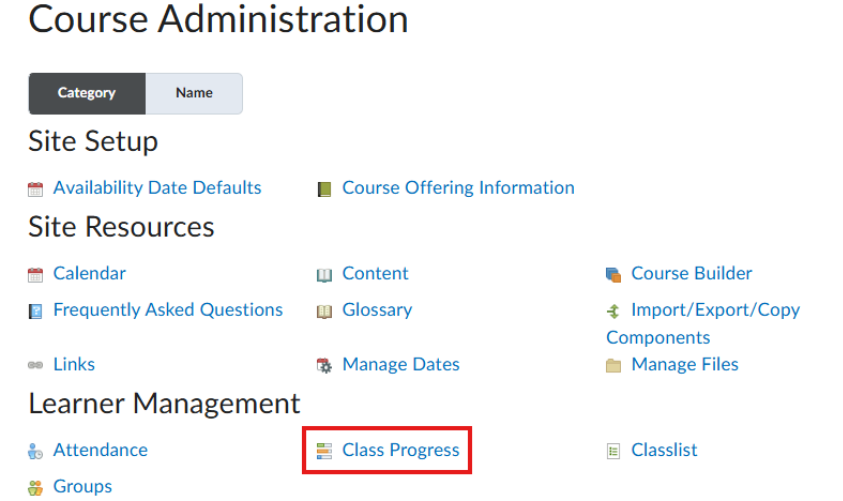
- Open the course in Brightspace.
- Click Course Admin in the navbar.
- Select Class Progress in the menu.
- You will now see an overview of all students in the course.
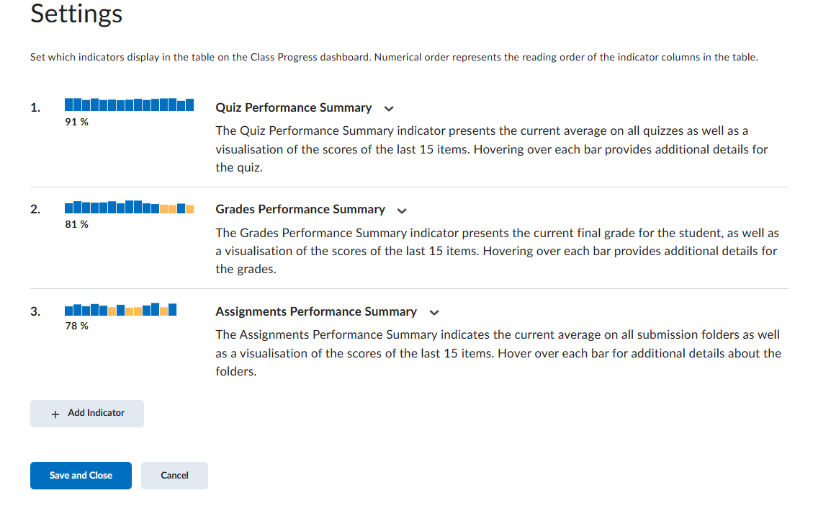
Settings in Class Progress
- In Class Progress, click the gear icon (Settings) in the top right corner.
- Here you can define which indicators are visible (up to four at a time under “Show”).
- Click Add Indicator to include a new one.
- Or click the arrow next to an existing indicator and choose Replace to select a different one.
- Click Save and Close to save your changes.
Accessing User Progress
- Go to Class Progress via Course Admin.
- Find the relevant student and click their name.
- Select View Progress.
- A detailed overview of that student’s progress will appear.