Setting up Grade Schemes
Grade Schemes can be found by following these steps:
- Click ‘Grades’ in the course navigation bar to find Grading Schemes.
- Then click ‘Schemes’.

Setting a Default Grade Scheme for the entire course
Under Schemes you will find a list of all available default grading schemes offered by the UU.
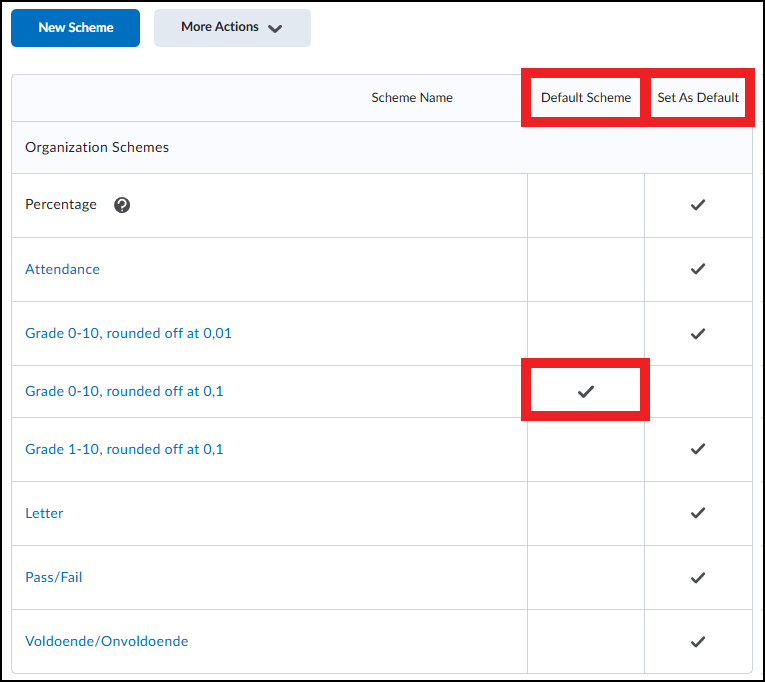
- ‘Grade 0-10, rounded off at 0,01’ is set as the default scheme. The ‘Default Scheme’ is the standard grading scheme that is also applied by default in courses to all columns that use the ‘Default Grade Scheme’.
- In the ‘Set as default’ column you can indicate whether you want to use a different grading scheme as the default for your course instead of the original ‘Grade 0-10, rounded off at 0,01’ grading scheme.
The default grading scheme can also be set (or changed) by following the Setup Wizard in Grades. All grades set to the default grading scheme will also be updated by this action. However, grades with a specifically configured grading scheme will not be changed and must be adjusted separately.
Why Multiple Grading Schemes?
Brightspace gives you the option to set multiple grading schemes, because different components in the course (for example assignments, tests, or final grades) may require different grades.
A course may, for example, contain assignments that are only assessed for students with ‘Pass/Fail’. In Brightspace you can then set a different grading scheme for specific columns in Grades.
Setting a Grade Scheme for specific columns
Grading schemes can be set individually for each component or category in Grades. When creating a grade item (such as for an assignment or test) or a category in Grades, the default grading scheme is used, but this can be adjusted to what is appropriate.
Overview of Grade Items and their associated schemes
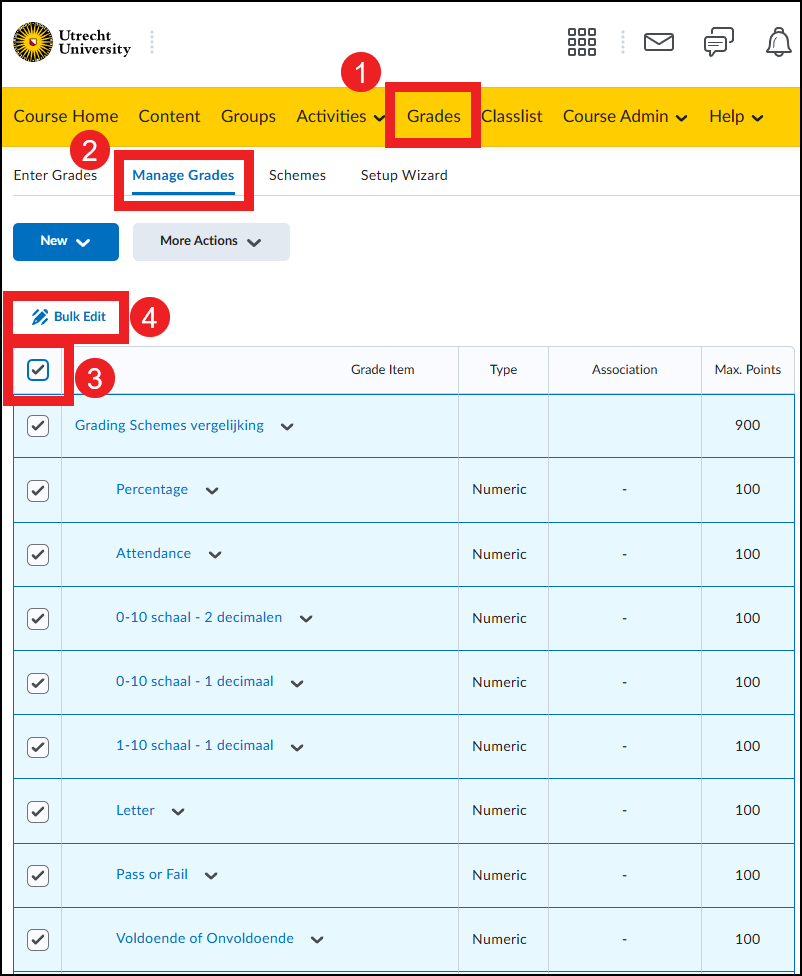
You can see which grade item uses which grading scheme and adjust these settings via ‘Bulk edit’.
- Go to ‘Grades’
- Click ‘Manage grades’.
- Select all components by checking the checkbox in the top left of the table.
- Click the ‘Bulk edit’ button.
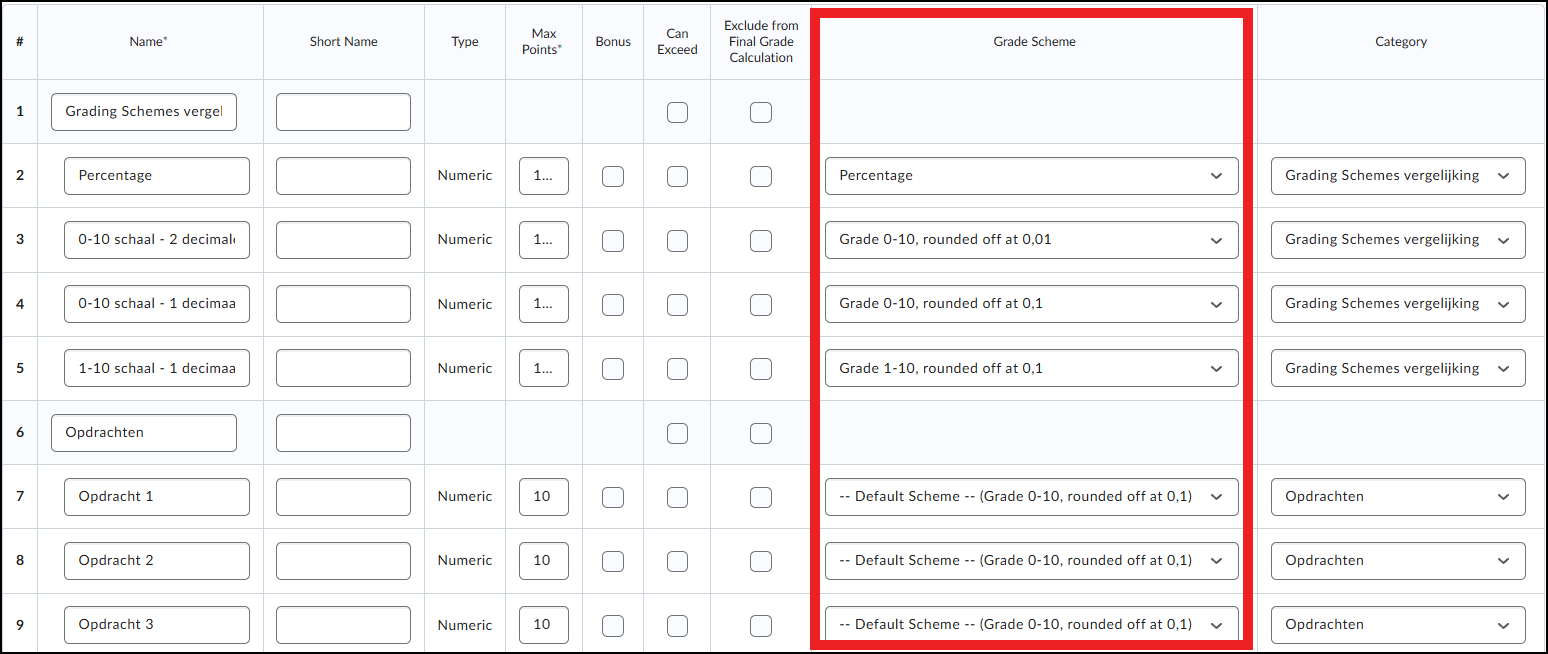
In the ‘Grade Scheme’ column you can view and change the linked grading scheme per grade item.