Display of grades
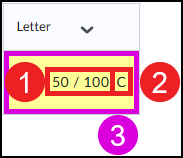
In the columns in Grades, instructors see the following by default:
- Points Grade: The number of points entered in the column.
(In the example below = 50. “/ 100” is the maximum number of points set for the column) - Grade scheme symbol: The symbol assigned in the grading scheme to the value that was entered. See Grade Schemes for more information.
(In the example below = C) - Grade scheme color: The color associated with what has been assigned in the grading scheme to the value that was entered. See Grade Schemes for more information.
(In the example below = light yellow background) - (optional) Weighted grade: The weighted grade based on the weight assigned to the grade item. This is only visible if Grades is set to use Weighted as the Grading System. By default, the Grading System is set to Points.
Customizing the Display
You can customize this display for both yourself and students. This can be done in 2 ways:
- Using the Setup Wizard
- Via Grades > Settings > Personal Display Options and Org Unit Display Options
Via the Setup Wizard
The Setup Wizard allows you to configure how you see the scores yourself and how students see the scores. As with the schemes, changing the default setting only affects the display options for grades that use the ‘default’ options.
Display for Students
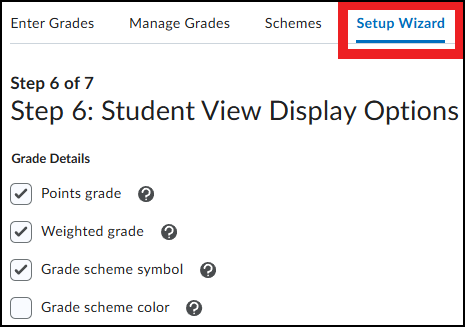
Under ‘Student View Display Options’ in the Setup Wizard you have the 3 or 4 options above to turn on or off (depending on whether Weighted or Points is set as the Grading System).
By default, Points grade, (if applicable) Weighted grade, and Grade scheme symbol are enabled for students.
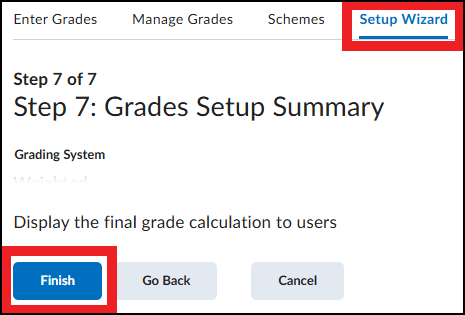
The Setup Wizard also offers the option to configure how decimals, text, and final grades are displayed.
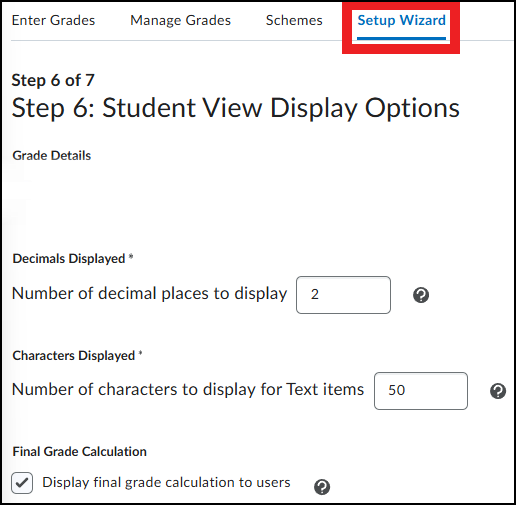
Remember to complete the wizard after using it, so that the changes to the settings are saved.
Display for Instructors
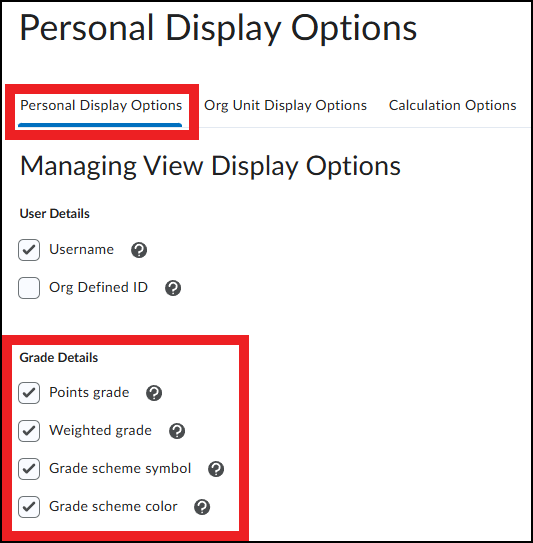
For instructors, all options are enabled by default. You can adjust this if desired.
- Go to ‘Grades’
- Click ‘Settings’ in the top right corner
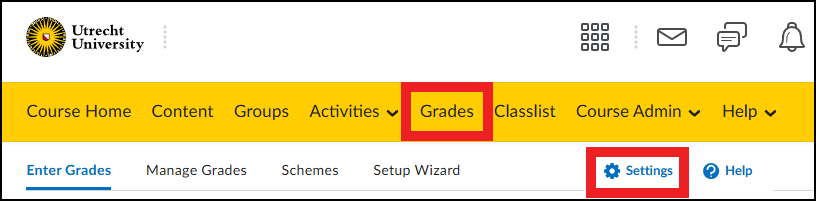
Under Personal Display Options you can adjust what you do and do not see in Grades under Grade Details. This is a personal setting, so it applies only to yourself and only for the selected course.