
Copy course in Brightspace
It is possible to copy both the structure and the content from one course to another. You must be registered as an instructor for both courses to be able to copy the content/structure. This way you can reuse (parts of) a course that you have already created. It is also useful to eventually move content that you have created in your Sandbox to the actual course.
Manually copying an existing course is useful when you are going to use a course from last year again this year. When you manually copy an existing course, you can choose which parts of the course you want to keep.
We call the old course the source course. The new course is called the new course.
The following parts cannot be copied from the source course:
- Users: students and teachers (the entire classlist)
- User data: items specific to users (for example, submitted assignments and grades)
- Release conditions based on items for specific users (for example, special access)
- Manually added events to the Calendar.
Copying last years course
If you only copy the content: all links to assignments and discussions, for example, will not work, those parts must also be copied.
- Go to the new course.
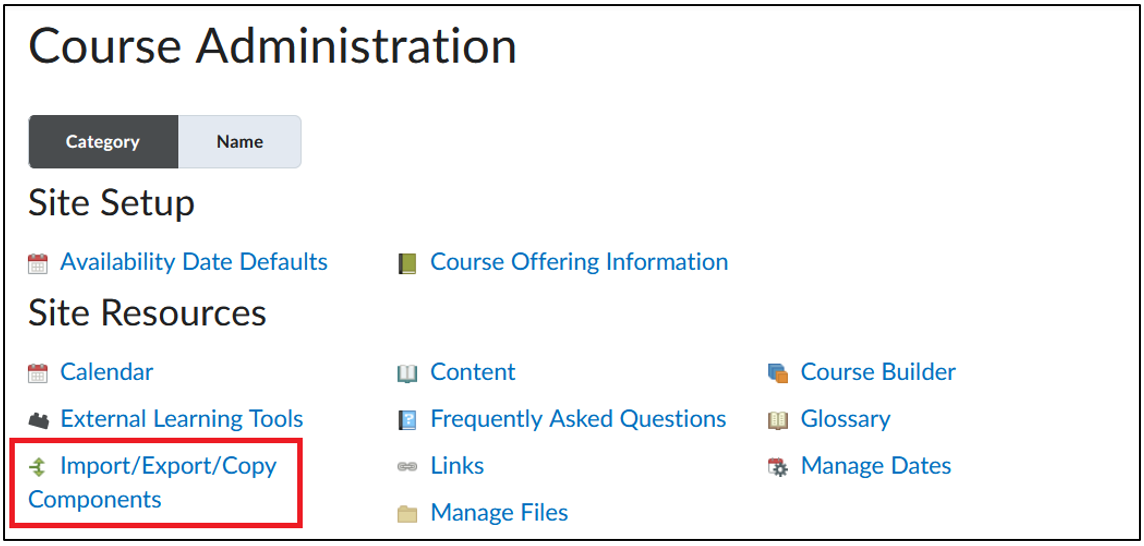
- Click Course Admin in the course navigation bar.

- Click Import/Export/Copy Components.
- Select Copy Components from another Org Unit to copy from the source to the new course.
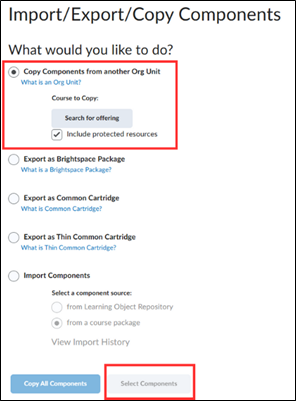
- Then click Search for offering. A screen will appear where you can search for the source course.
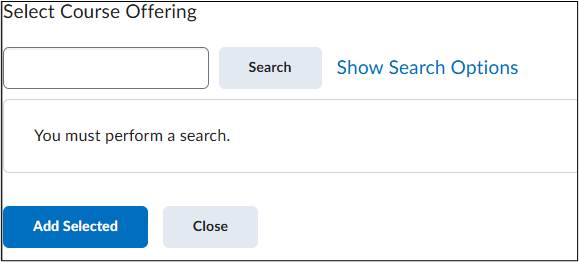 You can enter both the name and the code of the course. Select the correct course and click Add Selected.
 - Make sure Include protected resources is selected.
- Click Select Components. You will now see an overview of all components that can be copied.
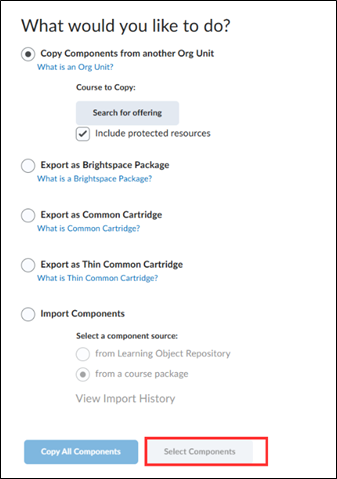
- Select the components you want to copy. You can select more specifically what you want to copy per component by clicking on Select individual items to copy.
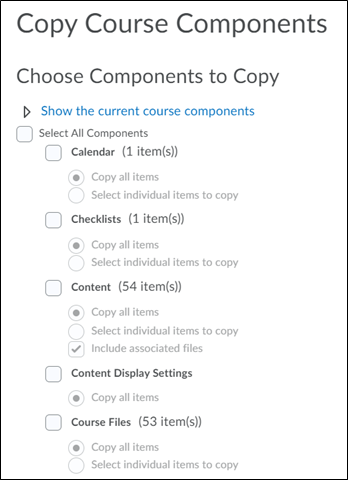
Copying specific modules or sub-modules
- Within components you can click on Select individual items to copy.
- By clicking on the ‘+’ symbol you will see various sub-modules that belong to the module.
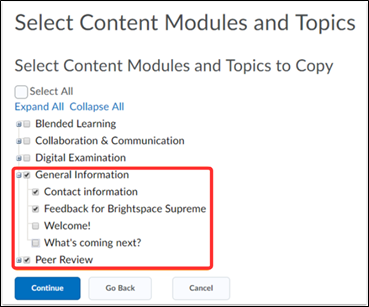 In the example above you can see which parts of the General Information module you would like to copy.
 - Clicking Finish will copy the selected components to the new course. Brightspace will confirm when the copying is complete and give you the following options:
- Copy Another Package
- View Content
- Review and Manage Dates
Check out the key parts in the new course for Copy Errors
All information that was visible in the source course is automatically visible in the new course. If you want to change this, you can manually change it yourself by setting the overarching unit to not visible.
Copied too much?
Always be careful when copying from another course. It is easy to copy too much, but afterward this cannot be removed in bulk. If “Copy all Components” was accidentally clicked in the previous step, or if too much content from the source course was copied to the target course for another reason, you will need to remove the excess components in the target course individually, one by one.
If the wrong course was copied or manually removing the content is not feasible, the course can be reset. This means the entire course will be cleared and nothing will remain in it. This can only be done by contacting your Faculty Key-User.
Which information is (not) copied during a Course Copy?
When using the Course Copy function, it is useful to know which items are copied and which are not, and what actions need to be taken after a course copy.
In addition, several Brightspace tools are listed in the table below, explaining one by one whether they are copied.
First, an important general rule:
Data from and about specific students will not be copied. This includes grades, submitted assignments, and student discussion threads.
| Tool | Copied (Yes/No) | Notes |
| Announcements | Ja | It is also possible not to copy announcements by performing a partial course copy. Specific announcements can also be manually deleted after copying. |
| Assignments | Ja | Submitted work is not copied. Any connection with the plagiarism detection system will be copied. |
| Attendance Registers | Ja | – |
| Calendar Events | Ja | Be aware that the dates in the copied course will still reflect the dates from the original course. It is possible to shift all dates by a number of weeks. Specific dates can also be removed, or the calendar can be excluded entirely by performing a partial course copy. |
| Classlist | Nee | Instructors listed in the classlist will also not be copied. |
| Content | Ja | Be careful with external functionalities; there is a risk that these may not function correctly after a course copy. |
| Content Status Hidden/ Visible | Ja | You may choose to set additional items to Hidden before students gain access to the course. |
| Course Files | Ja | – |
| Discussions | Ja | Note: only the structure (discussion forums and topics) is copied. Messages from students and/or instructors are not copied. |
| External Learning Tool Links | Ja | – |
| Gradebook | Ja | Note: grades are not copied, only the grade items, structure, and associated activities (for example, a link to an assignment). |
| Groups | Ja | Note: group enrollments are not copied. Only the group structure and any linked release conditions, assignments, and discussions are copied. |
| Release conditions | 99% | Release conditions based on section enrollments are not copied. These conditions must be set up again for each course. |
| Replace strings | Ja & Nee | Replace Strings are copied everywhere as Replace Strings except in Content. In Content, a Replace String is replaced by the value entered after creation. For example, {OrgUnitId} will remain the value of the source course. |
| Rubrics | Ja | – |
| Quizzes | Ja | Both the quizzes and the question libraries are copied. |
| Sections | Nee | Release conditions based on section enrollments are not copied. |
| FeedbackFruits modules | Ja | – |